In the vibrant world of live streaming, your webcam isn’t just a camera; it’s your digital window to the audience, your personal portal to connection and content creation. Whether you’re a budding gamer, an aspiring educator, a passionate artist, or a professional looking to engage virtually, a high-quality Webcam For Streaming can dramatically elevate your presence and impact. Gone are the days when any old camera would do; today’s competitive streaming landscape demands clarity, smoothness, and reliability.
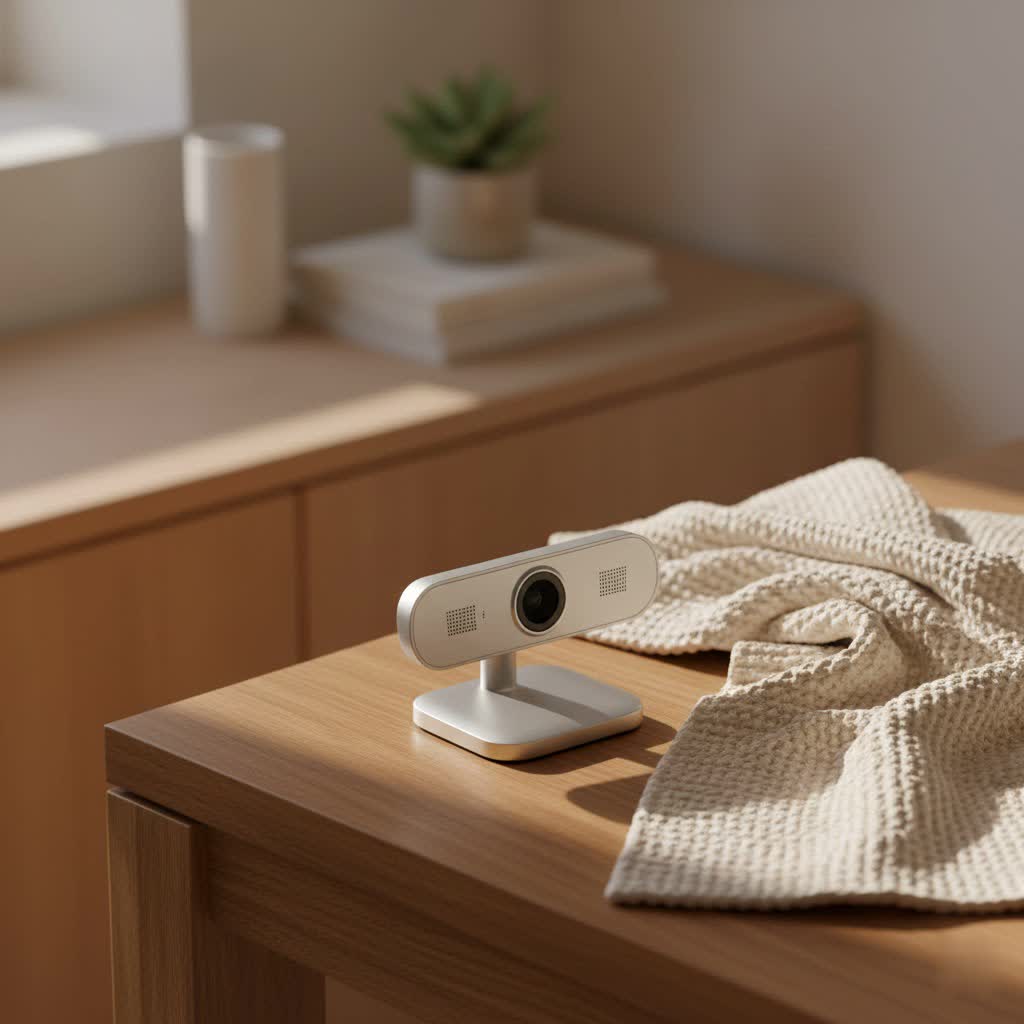
Many new streamers often start with their laptop’s built-in webcam, and while that’s a convenient first step, it quickly reveals its limitations. Integrated webcams typically offer lower resolution, poor low-light performance, and limited customization, leading to grainy, dark, and often unflattering video. Upgrading to a dedicated webcam for streaming is not just about better picture quality; it’s about investing in your brand, your audience’s experience, and your confidence on camera.
This comprehensive guide will walk you through everything you need to know about selecting, setting up, and optimizing a webcam for streaming, ensuring your broadcasts shine.
Essential Features to Look for in a Streaming Webcam
When you’re ready to dive into the world of dedicated webcams, the sheer number of options can feel overwhelming. Don’t worry, we’ll break down the crucial features that truly make a difference for streamers.
Resolution and Frame Rate: The Clarity and Smoothness Duo
Understanding resolution and frame rate is fundamental to achieving a professional-looking stream. Resolution dictates the sharpness and detail of your video, while frame rate determines its fluidity.
-
Resolution:
- 720p (HD): While it’s the bare minimum, 720p can suffice for casual streaming, especially if your internet bandwidth is limited. However, for a truly professional appearance, you’ll want more.
- 1080p (Full HD): This is the current gold standard for live streaming. A 1080p webcam delivers a crisp, clear image that looks fantastic on most displays, offering an excellent balance between quality and bandwidth usage. Many popular webcams for streaming, like the Logitech C920 or C922, excel here.
- 4K (Ultra HD): The pinnacle of consumer video resolution, 4K offers stunning detail. While streaming in native 4K can be bandwidth-intensive and demanding on your computer, recording in 4K provides immense flexibility for content creators who plan to edit their videos later. Some advanced webcams for streaming now offer 4K capabilities, like the Obsbot Tiny 2 or Elgato Facecam Pro.
-
Frame Rate (FPS – Frames Per Second):
- 30fps: This is adequate if your streams primarily involve you sitting and talking, with minimal movement. It provides a good visual experience for static content.
- 60fps: For fast-paced content like gaming, workout instructions, or any broadcast with significant movement, 60fps is essential. It ensures buttery-smooth motion, preventing blurriness and making your stream much more engaging. Many streamers prioritize 1080p at 60fps for optimal performance.
|
Our Picks for the Best Webcam in 2026
As an Amazon Associate I earn from qualifying purchases.
|
||
| Num | Product | Action |
|---|---|---|
| 1 | Gohero Full HD 1080P Video Webcam, Noise Cancellation, Privacy Cover, Wide-Angle Lens, Auto Light Correction, Plug & Play USB Webcam for Laptop, Desktop, PC, Mac, Zoom, Skype Pro Series |

|
| 2 | NIVEOLI Webcam 1080P with Microphone & Privacy Cover for PC/Laptop, USB Computer Camera Plug & Play with Auto Light Correction for Video Calls, Live Streaming Gaming & Online Meetings |
|
| 3 | 1080P Full HD Webcam with Noise-Canceling Mic, Auto Light Correction, Privacy Cover and Wide Angle Lens, Plug & Play USB Camera for Laptop/Desktop/PC/Mac, Compatible with Zoom/Skype/Teams/Streaming |
|
| 4 | Lenovo HD 1080p Webcam (300 FHD)- Black w/ 95° Wide Angle, 360° Rotation Pan & Tilt, Dual Microphones, Privacy Shutter |
|
| 5 | EMEET 1080P Webcam with Microphone, C960 Web Cam, 2 Mics, 90° FOV, USB Type-A & A-to-C Adapter, Plug&Play Computer Camera for Online Calling, Zoom/Teams/Facetime, Switch 2 Camera Support, 2025 Version |
|
| 6 | AOC 4k Webcam for PC with Microphone, Computer Camera with Noise Cancellation, Privacy Cover, 99° FOV, Plug & Play USB Webcam for Streaming, Conferencing, Zoom, Skype, Facetime, Laptop, PC, Skype |
|
| 7 | EMEET C960 4K Webcam for PC, 4K UHD Sony Sensor, PDAF Auto Focus, Dual AI Noise-Cancelling Mics, Auto Light Correction, 73° FOV, Plug&Play Webcam w/Privacy Cover, Works w/Zoom/Teams/Skype/Google Meet |
|
| 8 | Kemeiv 1080P Webcam Microphone and Physical Privacy Cover Computer Webcam, Noise-canceling Microphone, Automatic Light Compensation, Ultra-Wide-Angle Lens for Meetings/Courses/Streaming/Zoom/YouTube |
|
| 9 | TRAUSI 1080P Webcam with Privacy Cover, Wide-Angle Lens, Noise Cancellation, Plug and Play USB Webcam for Laptop/PC/Desktop |
|
| 10 | Logitech Brio 101 Full HD 1080p Webcam for Meetings, Streaming, Desktop, Laptop, PC - Built-in Mic, Shutter, Works with Zoom, Microsoft Teams, Nintendo Switch 2’s New GameChat Mode, USB-A,-Black |
|
“Don’t just chase the highest numbers,” advises Mark Jensen, a veteran streaming consultant. “A stable 1080p at 30fps with great lighting often looks better than a struggling 4K at 15fps.”
Autofocus vs. Manual Focus: Staying Sharp on Camera
A webcam’s focus capability ensures you remain sharp and clear in the frame.
- Autofocus: Most modern webcams for streaming feature autofocus. Look for models with fast and precise autofocus that can lock onto your face and maintain focus even if you lean forward, back, or move within the frame. This is incredibly convenient for dynamic streamers.
- Manual Focus: Some high-end webcams offer manual focus, giving you absolute control over what’s sharp. This can be beneficial for consistent setups where you never move, allowing for very specific depth of field effects, but it requires more technical know-how.
Low-Light Performance: Shine Bright, Even in the Dark
Lighting conditions for streamers can vary wildly. A webcam’s low-light performance is crucial for maintaining video clarity, especially if you stream in dimly lit environments or during late-night sessions. Cameras with larger sensors and high-quality lenses (low f-stop numbers) naturally perform better in low light, producing brighter, less grainy images. This feature is particularly important if you’re still perfecting your studio lighting setup.
Field of View (FOV): Framing Your Perfect Shot
Field of View refers to how much of your surroundings the camera can capture, measured in degrees. Your choice of FOV depends entirely on your content style.
- Narrow FOV (60°-78°): Ideal for a tight, professional-looking head-and-shoulders shot. It minimizes background distractions, keeping the focus squarely on you.
- Wide FOV (90° and above): Better suited for showing more of your environment, such as a full gaming setup, a whiteboard for educational content, or if you have multiple people in the frame.
Lens Quality & Built-in Mics: Beyond the Basics
- Lens Type: The type of lens significantly affects video quality. Glass lenses generally produce sharper images with better color reproduction than plastic lenses, often found in higher-resolution webcams.
- Built-in Microphones: Most webcams for streaming come with built-in microphones. While convenient for basic use, their audio quality is often subpar compared to a dedicated external microphone. For professional-sounding streams, investing in a separate mic is highly recommended. Your audience will tolerate average video quality more easily than poor audio.
Setting Up Your Streaming Webcam for Success
Once you’ve chosen the right webcam for streaming, proper setup is key to unlocking its full potential. Even the best camera can look bad with a poor setup.
Optimal Placement and Angle: Your Best Side Forward
Webcam placement can psychologically impact how viewers perceive you.
- Eye Level: Position your webcam at eye level or slightly above. This creates a natural, engaging perspective and avoids unflattering up-the-nostril shots or making you appear diminutive.
- Centering and Framing: Frame yourself so that your entire head and the top of your torso are visible, leaving a small amount of “headroom” (space above your head). Avoid going too wide or too tight; you want room to breathe but also want the focus to be on you, not dead space.
Lighting is Everything: Illuminating Your Stream
Good lighting is perhaps the single most impactful element for video quality. Even a mid-range webcam can look phenomenal with excellent lighting, while a 4K powerhouse can look grainy without it.
- Natural Light: If possible, position yourself facing a window for soft, even illumination. Avoid placing a window directly behind you, as this will silhouette you.
- Artificial Lighting:
- Ring Lights: A popular choice for streamers, ring lights provide soft, even illumination on your face, reducing shadows.
- Three-Point Lighting: For a more professional setup, consider a three-point lighting system: a main “key light” to one side, a softer “fill light” on the opposite side to reduce shadows, and a “backlight” to separate you from your background.
- Avoid Overhead Lighting: Direct overhead lights can create harsh shadows under your eyes and nose.
Crafting Your Background: Setting the Scene
Your background is an extension of your streaming persona.
- Tidy and Uncluttered: A clean, organized background instantly makes your stream look more professional.
- Personal Touches: Add elements that reflect your personality or content, like shelves with collectibles, artwork, or subtle branding.
- Green Screens: For ultimate flexibility, a green screen allows you to digitally remove your background and replace it with anything you desire, from game overlays to virtual environments.
Software and Driver Essentials: Fine-Tuning Your Feed
Most webcams come with dedicated software or rely on drivers.
- Install and Update Drivers: Always ensure your webcam’s drivers and software are up-to-date for optimal performance and access to all features.
- Adjust Settings: Use your webcam’s software or your streaming platform (like OBS or Streamlabs) to tweak settings like resolution, frame rate, exposure, and white balance.
- Disable Automatic Settings: A pro tip is to turn off all automatic settings (auto-exposure, auto-white balance, auto-gain). While seemingly helpful, these can cause inconsistent lighting and color shifts during your stream. Manually dial them in for a consistent, professional look.
Pro Tips for Maximizing Your Webcam’s Streaming Potential
Beyond the basics, a few advanced tricks can truly make your webcam for streaming stand out.
- Color Correction and Filters: Many streaming software options offer color correction filters. Experiment with slight adjustments to saturation, contrast, and gamma to enhance your image. You can even add LUTs (Look-Up Tables) for cinematic color grading.
- Cropping and Zooming: Instead of physically moving your webcam, use cropping filters in your streaming software to fine-tune your frame. You can also zoom in slightly to focus on your face, but remember that zooming on a 1080p webcam will reduce effective resolution. If you’re going to crop heavily, starting with a 4K webcam provides more leeway.
- Maintaining Consistency: Once you find settings that work, stick with them. Consistency in your video quality helps build a reliable and professional brand.
Top Webcams for Streaming: Options for Every Budget
While specific models evolve rapidly, here are examples of popular and highly-regarded webcams for streaming across different price points:
-
Budget-Friendly Champions (Under $70):
- Logitech C920/C922 Pro: These have been staples for years, offering excellent 1080p at 30fps, reliable autofocus, and good low-light correction for their price. An incredible value for new streamers.
- Elgato Facecam Neo: A newer contender offering 1080p at 60fps with autofocus and a physical privacy shutter, making it a strong budget pick for smoothness.
-
Mid-Range Performers ($70-$150):
- Logitech StreamCam: Designed with streamers in mind, it delivers 1080p at 60fps, intelligent autofocus, and even portrait/landscape modes, making it an all-rounder.
- Razer Kiyo Pro: Known for its adaptive light sensor and excellent low-light performance, the Kiyo Pro offers superb 1080p at 60fps, great for challenging lighting environments.
-
High-End Powerhouses ($150+):
- Obsbot Tiny 2 / Tiny 2 Lite: These webcams stand out with AI-powered auto-tracking, mechanical pan and tilt, and impressive 4K video capabilities, keeping you perfectly framed even if you move around.
- Elgato Facecam Pro: A true 4K webcam for streamers, offering 4K at 60fps with a wide field of view and uncompressed video capture for the absolute best picture quality.
- Insta360 Link: Featuring a 4K camera on an AI-powered 3-axis gimbal, it offers exceptional video quality and intelligent tracking for content creators who need dynamic camera movements.
Remember, the “best” webcam for streaming ultimately depends on your specific needs, content style, and budget. Always check recent reviews and benchmarks before making a purchase.
FAQs: Your Streaming Webcam Questions Answered
We get a lot of questions about webcams for streaming. Here are some of the most common ones:
Is 4K resolution truly necessary for streaming?
Not for most streamers, especially beginners. While 4K offers incredible detail, many streaming platforms downscale resolution to 1080p or even 720p to conserve bandwidth for viewers. Furthermore, 4K streaming demands a powerful PC and a very fast internet connection. For the vast majority, a high-quality 1080p webcam at 60fps provides more than enough clarity and smoothness.
Can I use a DSLR or mirrorless camera as a webcam for streaming?
Absolutely! Many professional streamers opt for DSLRs or mirrorless cameras because they offer superior image quality, interchangeable lenses, and manual controls. You’ll typically need a capture card (like the Elgato Cam Link 4K) to convert the camera’s HDMI output into a signal your computer can recognize as a webcam.
How important is a good internet connection for webcam streaming?
Extremely important. Even with the best webcam, a weak or unstable internet connection will result in lag, buffering, and poor video quality for your viewers. Prioritize a strong, reliable upload speed. Wired (Ethernet) connections are always more stable than Wi-Fi for streaming.
What about webcam privacy shutters?
A physical privacy shutter is a simple yet effective feature that provides peace of mind. It’s a small slider or cover that physically blocks your webcam lens when not in use, ensuring complete privacy against accidental broadcasts or potential hacking. Many modern webcams now include them.
Final Thoughts
Choosing and optimizing a webcam for streaming might seem like a deep dive into technical details, but it’s a journey well worth taking. Your webcam is the eye through which your audience sees your passion, your personality, and your content. By focusing on essential features like resolution, frame rate, low-light performance, and intelligent setup practices, you can transform your streams from amateur to outstanding.
Remember, the goal is to create an engaging, high-quality experience for your viewers, and a well-chosen and properly configured webcam is a cornerstone of that endeavor. So, go forth, choose wisely, set up strategically, and let your unique streaming presence shine brightly!
