In today’s hyper-connected world, where virtual meetings, online learning, and digital content creation are the norm, your visual and auditory presence matters more than ever. While many laptops come with built-in cameras, a dedicated Usb Webcam offers a significant upgrade, transforming your online interactions from good to exceptional. But what exactly is a USB webcam, and why should you consider investing in one? Simply put, it’s an external camera that connects to your computer via a USB port, providing superior image quality, enhanced features, and greater flexibility than your device’s integrated option.
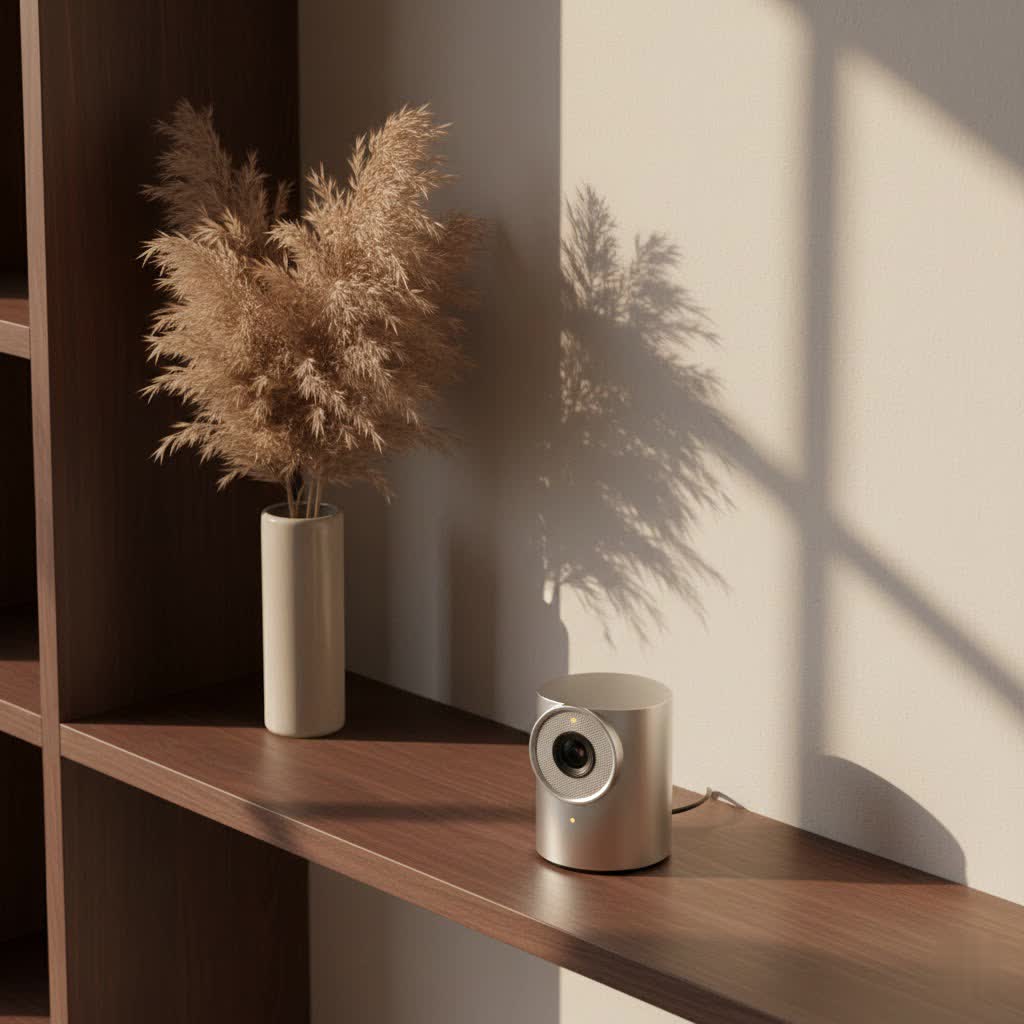
Choosing the right USB webcam, setting it up correctly, and knowing how to troubleshoot common issues can seem daunting. However, with the right guidance, you can confidently navigate the options and optimize your virtual presence for any scenario, from crucial business calls to captivating live streams.
Why a USB Webcam is Your Virtual Must-Have
Think of your laptop’s built-in camera as a handy snapshot tool – functional, but often lacking in depth and detail. A USB webcam, on the other hand, is like upgrading to a professional camera, giving you the power to truly control how you appear and sound.
The advantages are clear:
- Superior Quality: Most built-in cameras struggle in anything less than perfect lighting, producing grainy, washed-out images. External USB webcams boast better lenses, larger sensors, and advanced image processing, delivering crisp, vibrant video even in challenging conditions.
- Flexibility and Positioning: A fixed laptop camera limits your angles, often resulting in unflattering shots. A USB webcam can be mounted on top of your monitor, on a tripod, or even on a desk stand, allowing you to achieve the perfect eye-level shot or a wider view of your workspace.
- Versatility for Every Need: Whether you’re a professional aiming for crystal-clear video conferencing, a student attending remote classes, a gamer streaming your latest conquest, or a content creator producing high-quality videos, there’s a USB webcam designed to meet your specific demands. They often come with features like wider fields of view, better microphones, and advanced software controls, far surpassing the capabilities of integrated cameras.
Decoding the Specs: What to Look for in a USB Webcam
Navigating the technical jargon of webcams can be tricky. Here’s a breakdown of the key features to consider when selecting your ideal USB webcam:
Crystal Clear Visuals: Resolution and Frame Rate
These two factors are paramount for video quality.
- Resolution: This refers to the number of pixels in your video, directly impacting sharpness and detail.
- 720p (HD): Suitable for basic video calls, but details might appear soft.
- 1080p (Full HD): The standard for most modern webcams, offering a clear and detailed image perfect for most video conferencing and casual streaming. Many web conferencing apps cap streaming resolution at 1080p, making this a highly practical choice.
- 4K (Ultra HD): Provides exceptional detail, ideal for professional content creators, high-end streaming, or when you need to crop and zoom without losing quality. While impressive, remember that 4K video generates larger files and requires more processing power.
- Frame Rate (FPS): This indicates how many still images (frames) your webcam captures per second, affecting the smoothness of motion.
- 30fps: Standard for most applications, offering smooth enough video for typical conversations.
- 60fps: Crucial for fast-paced activities like gaming, sports, or dynamic presentations, providing incredibly fluid and lifelike motion. If you’re looking for the smoothest possible video, especially for streaming, aim for 60fps at 1080p or higher.
|
Our Picks for the Best Webcam in 2026
As an Amazon Associate I earn from qualifying purchases.
|
||
| Num | Product | Action |
|---|---|---|
| 1 | NIVEOLI Webcam 1080P with Microphone & Privacy Cover for PC/Laptop, USB Computer Camera Plug & Play with Auto Light Correction for Video Calls, Live Streaming Gaming & Online Meetings |

|
| 2 | Logitech Brio 101 Full HD 1080p Webcam for Meetings, Streaming, Desktop, Laptop, PC - Built-in Mic, Shutter, Works with Zoom, Microsoft Teams, Nintendo Switch 2’s New GameChat Mode, USB-A,-Black |
|
| 3 | Lenovo HD 1080p Webcam (300 FHD)- Black w/ 95° Wide Angle, 360° Rotation Pan & Tilt, Dual Microphones, Privacy Shutter |
|
| 4 | AOC 4k Webcam for PC with Microphone, Computer Camera with Noise Cancellation, Privacy Cover, 99° FOV, Plug & Play USB Webcam for Streaming, Conferencing, Zoom, Skype, Facetime, Laptop, PC, Skype |
|
| 5 | EMEET C960 4K Webcam for PC, 4K UHD Sony Sensor, PDAF Auto Focus, Dual AI Noise-Cancelling Mics, Auto Light Correction, 73° FOV, Plug&Play Webcam w/Privacy Cover, Works w/Zoom/Teams/Skype/Google Meet |
|
| 6 | 1080P Full HD Webcam with Noise-Canceling Mic, Auto Light Correction, Privacy Cover and Wide Angle Lens, Plug & Play USB Camera for Laptop/Desktop/PC/Mac, Compatible with Zoom/Skype/Teams/Streaming |
|
| 7 | EMEET 1080P Webcam with Microphone, C960 Web Cam, 2 Mics, 90° FOV, USB Type-A & A-to-C Adapter, Plug&Play Computer Camera for Online Calling, Zoom/Teams/Facetime, Switch 2 Camera Support, 2025 Version |
|
| 8 | Kemeiv 1080P Webcam Microphone and Physical Privacy Cover Computer Webcam, Noise-canceling Microphone, Automatic Light Compensation, Ultra-Wide-Angle Lens for Meetings/Courses/Streaming/Zoom/YouTube |
|
| 9 | TRAUSI 1080P Webcam with Privacy Cover, Wide-Angle Lens, Noise Cancellation, Plug and Play USB Webcam for Laptop/PC/Desktop |
|
| 10 | Gohero Full HD 1080P Video Webcam, Noise Cancellation, Privacy Cover, Wide-Angle Lens, Auto Light Correction, Plug & Play USB Webcam for Laptop, Desktop, PC, Mac, Zoom, Skype Pro Series |
|
Focus and Field of View: Capturing Your Best Angle
- Autofocus: This feature automatically adjusts the lens to keep you sharp and in focus, even if you move around. Most modern webcams include autofocus, with higher-end models offering faster and more precise adjustments. Manual focus options are also available for specific creative control.
- Field of View (FOV): FOV determines how much of the scene your webcam captures. It’s measured in degrees.
- Narrow FOV (60-70 degrees): Ideal for individual use, focusing solely on you without revealing too much of your background.
- Wide FOV (90-120 degrees): Better for showing multiple people, a broader workspace, or if you want to include more of your environment. Some webcams offer adjustable FOV settings, allowing you to customize it based on your needs.
Hear Me Clearly: Microphone Quality
While many USB webcams include built-in microphones, their quality can vary significantly.
- Built-in Microphones: Often omnidirectional, capturing sound from all directions. Decent for casual calls, but can pick up background noise.
- Noise-Cancellation: Some webcams feature advanced noise-cancellation technology, which helps filter out ambient sounds, making your voice clearer.
- External Microphones: For truly professional audio, especially for streaming or podcasting, an external USB microphone or a dedicated XLR setup is usually recommended, as even the best webcam mics have limitations.
Beyond the Basics: Lenses, Lighting, and More
- Lens Type: Webcams typically use either plastic or glass lenses. Glass lenses generally offer superior optical quality, producing sharper images with more accurate colors and better low-light performance.
- Low-Light Correction: Many webcams include technology (like Logitech’s RightLight or similar) to automatically adjust exposure and white balance, ensuring you look well-lit even in dimly lit rooms or with challenging backlighting. This is a game-changer for maintaining consistent video quality regardless of your environment.
- Optical Zoom: While less common in standard webcams, some higher-end models offer optical zoom, which allows you to zoom in without losing image quality, unlike digital zoom.
- Mounting Options: Consider how you’ll attach your webcam. Most clip onto monitors, while others come with tripod mounts for greater flexibility.
- Compatibility: Ensure the webcam is compatible with your operating system (Windows, macOS, ChromeOS) and your preferred video conferencing or streaming software (Zoom, Teams, OBS Studio, etc.). Most USB webcams are universally compatible with major OS and applications.
- Privacy Shutter: A physical lens cover offers peace of mind, ensuring your camera is blocked when not in use.
Setting Up Your USB Webcam: A Smooth Start
Getting your new USB webcam up and running is usually a straightforward process.
Plug-and-Play Power
The beauty of most modern USB webcams lies in their plug-and-play functionality.
- Connect with Ease: Simply plug the webcam’s USB cable into an available USB port on your computer. Your operating system (Windows, macOS, etc.) should automatically detect the device.
- Initial Recognition: On Windows, you might see a notification that a new device is being set up. On macOS, applications like Photo Booth or FaceTime should recognize it instantly.
Drivers and Software: The Essential Updates
While plug-and-play works for basic functionality, installing manufacturer-specific drivers and software can unlock your webcam’s full potential.
- Automatic Drivers: For Windows users, the OS often installs generic drivers. However, for optimal performance, visit the webcam manufacturer’s official website (e.g., Logitech, Razer, Obsbot, Elgato) to download the latest specific drivers and any accompanying software.
- Advanced Controls: Manufacturer software typically provides a dashboard where you can fine-tune settings like resolution, frame rate, brightness, contrast, white balance, and even apply digital zoom or pan/tilt functions. Keeping this software updated ensures you have access to the latest features and bug fixes.
Optimizing Your Image and Sound
Once connected, a few adjustments can significantly enhance your video calls and recordings.
- Adjusting Settings: In your video conferencing or streaming application (e.g., Zoom, Microsoft Teams, OBS Studio), go to the video settings. Here, you can select your USB webcam as the primary camera and adjust parameters like resolution, frame rate, and focus to your preference.
- Perfect Positioning: Position your webcam at eye level to create a more natural and engaging interaction. Avoid placing it too high or too low. A good rule of thumb is to have your eyes in the top third of the frame.
- Lighting is Key: Good lighting can make even a modest webcam shine. Position a light source in front of you, not behind, to avoid being silhouetted. Natural light from a window is excellent, or consider a ring light for consistent illumination.
- Checking Audio Input: In your application’s audio settings, ensure your USB webcam‘s microphone (or your preferred external microphone) is selected as the input device. Test the audio levels to prevent your voice from being too quiet or distorted.
Troubleshooting Common USB Webcam Hiccups
Even the best technology can occasionally run into snags. Here are some common USB webcam issues and how to resolve them.
“My Webcam Isn’t Recognized!”
This is a frequent complaint. Here’s what to do:
- Check Connections: First, ensure the USB cable is firmly plugged into both the webcam and your computer. Try unplugging and re-plugging it.
- Try Different Ports: A faulty USB port can be the culprit. Test the webcam in a different USB port on your computer. If you’re using a USB hub, try connecting the webcam directly to your computer.
- Restart Everything: A simple restart of your computer and the application using the webcam can often resolve temporary glitches.
- Driver Check: Go to your computer’s Device Manager (Windows) or System Information (macOS) to see if the webcam is listed under “Imaging devices” or “Cameras.” If there’s an error icon, you might need to update or reinstall the drivers from the manufacturer’s website.
Blurry Video or Poor Image Quality
If your video isn’t as crisp as expected:
- Improve Lighting: Insufficient or poorly positioned lighting is a common cause of poor image quality. Ensure you have adequate front lighting.
- Adjust Camera Settings: Use your webcam’s software or the application’s video settings to adjust brightness, contrast, exposure, and white balance.
- Clean the Lens: A smudged lens can cause blurriness. Gently wipe the lens with a microfiber cloth.
- Check Resolution: Make sure your video output resolution is set to 1080p or 4K in your application settings, not a lower resolution.
Audio Woes: No Sound or Poor Quality
If your voice isn’t coming through clearly, or at all:
- Select Correct Input: In your computer’s sound settings and your video application’s audio settings, ensure the USB webcam‘s microphone (or your external mic) is explicitly chosen as the input device.
- Check Levels: Verify that the microphone’s input volume isn’t muted or set too low.
- Noise Interference: If you hear static or humming, ensure the webcam cable isn’t too close to power cables or other electronic devices that could cause interference.
- Consider an External Mic: For critical audio, an external USB microphone will almost always outperform a built-in webcam mic.
Software Conflicts and Privacy
Sometimes, other programs can interfere with your webcam.
- Close Conflicting Apps: Ensure no other applications are trying to use your webcam simultaneously, as this can cause conflicts.
- Privacy Settings: Check your operating system’s privacy settings to ensure applications have permission to access your camera and microphone.
- Firmware Updates: Manufacturers occasionally release firmware updates for their webcams that can improve performance and fix bugs. Check their support page.
Expert Advice: Elevating Your Webcam Experience
“Optimizing your USB webcam isn’t just about good tech; it’s about good practice,” says Dr. Anya Sharma, a leading expert in digital communication and Mundv.com contributor. “Always test your setup a few minutes before a critical meeting or stream. Pay attention to your background, your lighting, and your posture. These seemingly small details collectively build a professional and trustworthy presence that hardware alone cannot achieve.”
For those engaging in specific activities:
- For Professional Meetings: Prioritize 1080p resolution, reliable autofocus, and a clear microphone. Ensure a clean, professional background.
- For Streaming and Content Creation: Look for 1080p at 60fps or 4K, often with advanced features like AI tracking, wider FOV, and strong low-light performance. Pair it with a dedicated external microphone for the best audio.
Frequently Asked Questions (FAQ)
What’s the difference between a 1080p and a 4K USB webcam?
A 1080p webcam captures video at 1920×1080 pixels, offering clear, detailed images suitable for most uses. A 4K webcam captures video at 3840×2160 pixels, providing four times the detail of 1080p, ideal for high-end streaming or professional content creation where maximum clarity is desired.
Do all USB webcams work with Macs and Windows?
Most modern USB webcams are designed to be universally compatible with both Windows and macOS operating systems, often featuring plug-and-play functionality. However, it’s always best to check the product specifications for specific compatibility details before purchasing.
Can I use a USB webcam for live streaming?
Absolutely! Many USB webcams are specifically marketed towards streamers and content creators, offering features like high resolutions (1080p, 4K), higher frame rates (60fps), and advanced image quality adjustments, making them excellent choices for live streaming platforms.
How often should I update my webcam drivers?
You should check for webcam driver updates periodically, especially if you experience performance issues, or after major operating system updates. Visiting the manufacturer’s website every few months is a good practice to ensure you have the latest software.
Why is my webcam’s image so dark?
A dark image is typically caused by insufficient lighting in your environment. Ensure you have a bright light source positioned in front of you, facing you directly. You can also adjust exposure settings within your webcam’s software or your video application to brighten the image.
Do I need a separate microphone with a USB webcam?
While most USB webcams include built-in microphones, an external microphone is highly recommended for optimal audio quality, especially for professional settings, streaming, or podcasting. Built-in mics can be good for casual calls but often pick up more background noise.
Taking Control of Your Virtual Self
In an age where digital interactions are integral to our lives, mastering your virtual presence is paramount. A USB webcam is more than just a peripheral; it’s a gateway to clearer communication, more engaging content, and a more professional persona. By understanding the key features, confidently setting up your device, and knowing how to troubleshoot common problems, you’re not just buying a camera – you’re investing in a superior online experience. So go ahead, choose wisely, connect confidently, and let your digital presence truly shine.
