In a world increasingly dependent on digital communication, the familiar tangle of cables can feel like a relic from a bygone era. Whether you’re a seasoned streamer, a remote professional, or simply looking to connect with loved ones, a reliable webcam is essential. But what if you could break free from the desk, move effortlessly, and capture your world from any angle, without a single wire holding you back? Enter the Wireless Webcam, a game-changer that offers unparalleled freedom and flexibility in your video endeavors.
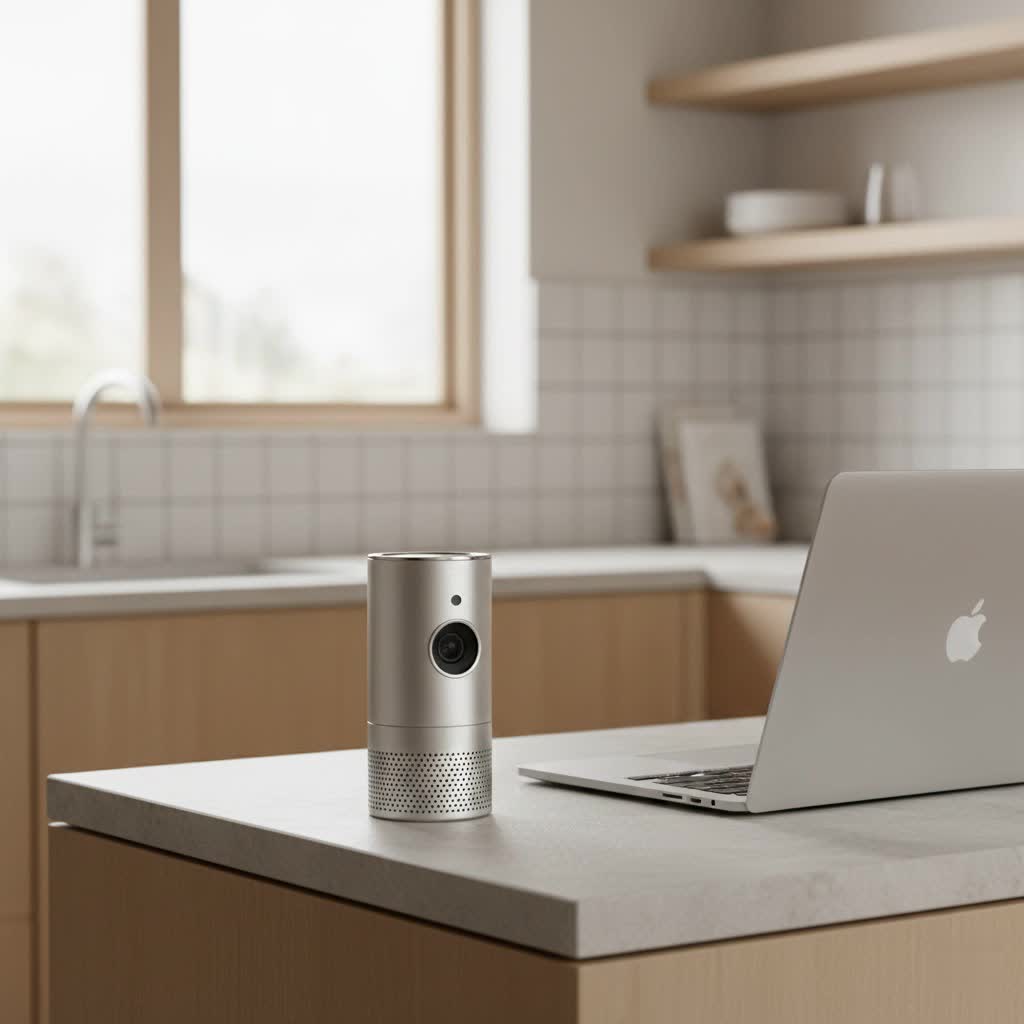
As someone who has navigated the ever-evolving landscape of video technology for over 15 years, I’ve seen webcams transform from basic, clunky devices into sophisticated tools. The shift to wireless connectivity marks one of the most significant advancements, empowering users to create dynamic content, conduct seamless virtual meetings, and keep an eye on what matters most, all with incredible ease. This comprehensive guide will walk you through everything you need to know about wireless webcams, from understanding their technology to choosing the perfect model, setting it up like a pro, and troubleshooting any bumps along the way. Get ready to experience video communication on your own terms.
The Freedom of Going Wire-Free: Benefits of a Wireless Webcam
The allure of a wireless webcam extends far beyond mere convenience. It’s about unlocking new possibilities for how and where you connect, create, and monitor. The absence of physical cables dramatically redefines your setup, offering advantages that wired alternatives simply can’t match.
Unmatched Flexibility and Portability
Imagine being able to position your camera exactly where it makes the most impact – not just where a cable dictates. This is the core promise of a wireless webcam. You can easily reposition it for a different angle during a presentation, capture dynamic shots for a livestream, or move it between rooms for various monitoring needs. This flexibility is invaluable for:
- Dynamic Presentations: Effortlessly shift your camera to showcase a whiteboard, a product, or even demonstrate an exercise, all without interrupting your flow.
- Creative Content Creation: From cooking demos to art tutorials, a portable webcam allows for unique perspectives and shot compositions that were previously cumbersome to achieve.
- Temporary Setups: Ideal for events, pop-up studios, or monitoring construction sites where running permanent cabling is impractical or too expensive. It allows for quick deployment and breakdown.
|
Our Picks for the Best Webcam in 2026
As an Amazon Associate I earn from qualifying purchases.
|
||
| Num | Product | Action |
|---|---|---|
| 1 | Lenovo HD 1080p Webcam (300 FHD)- Black w/ 95° Wide Angle, 360° Rotation Pan & Tilt, Dual Microphones, Privacy Shutter |

|
| 2 | Logitech Brio 101 Full HD 1080p Webcam for Meetings, Streaming, Desktop, Laptop, PC - Built-in Mic, Shutter, Works with Zoom, Microsoft Teams, Nintendo Switch 2’s New GameChat Mode, USB-A,-Black |
|
| 3 | EMEET C960 4K Webcam for PC, 4K UHD Sony Sensor, PDAF Auto Focus, Dual AI Noise-Cancelling Mics, Auto Light Correction, 73° FOV, Plug&Play Webcam w/Privacy Cover, Works w/Zoom/Teams/Skype/Google Meet |
|
| 4 | EMEET 1080P Webcam with Microphone, C960 Web Cam, 2 Mics, 90° FOV, USB Type-A & A-to-C Adapter, Plug&Play Computer Camera for Online Calling, Zoom/Teams/Facetime, Switch 2 Camera Support, 2025 Version |
|
| 5 | Gohero Full HD 1080P Video Webcam, Noise Cancellation, Privacy Cover, Wide-Angle Lens, Auto Light Correction, Plug & Play USB Webcam for Laptop, Desktop, PC, Mac, Zoom, Skype Pro Series |
|
| 6 | NIVEOLI Webcam 1080P with Microphone & Privacy Cover for PC/Laptop, USB Computer Camera Plug & Play with Auto Light Correction for Video Calls, Live Streaming Gaming & Online Meetings |
|
| 7 | AOC 4k Webcam for PC with Microphone, Computer Camera with Noise Cancellation, Privacy Cover, 99° FOV, Plug & Play USB Webcam for Streaming, Conferencing, Zoom, Skype, Facetime, Laptop, PC, Skype |
|
| 8 | TRAUSI 1080P Webcam with Privacy Cover, Wide-Angle Lens, Noise Cancellation, Plug and Play USB Webcam for Laptop/PC/Desktop |
|
| 9 | Kemeiv 1080P Webcam Microphone and Physical Privacy Cover Computer Webcam, Noise-canceling Microphone, Automatic Light Compensation, Ultra-Wide-Angle Lens for Meetings/Courses/Streaming/Zoom/YouTube |
|
| 10 | 1080P Full HD Webcam with Noise-Canceling Mic, Auto Light Correction, Privacy Cover and Wide Angle Lens, Plug & Play USB Camera for Laptop/Desktop/PC/Mac, Compatible with Zoom/Skype/Teams/Streaming |
|
Effortless Setup and Clutter-Free Spaces
One of the most immediate and satisfying benefits of adopting a wireless webcam is the sheer simplicity of its installation. No more wrestling with tangled cords or meticulously planning cable routes. This ease of use translates into significant advantages:
- Quick Installation: Most wireless webcams are designed for plug-and-play or straightforward app-based setup, getting you up and running in minutes.
- Clean Workspace: By eliminating cables, you create a more organized and aesthetically pleasing environment. This isn’t just about looks; a clutter-free desk can lead to improved focus and productivity, helping you maintain a clear head during those crucial video calls.
Enhanced Versatility: Beyond Basic Video Calls
While excellent for video conferencing, the capabilities of a wireless webcam stretch much further, transforming it into a versatile tool for various aspects of your life.
- Seamless Streaming: For content creators on platforms like Twitch, YouTube, or Facebook Live, a wireless connection allows for greater freedom of movement and dynamic scene changes, enhancing viewer engagement.
- Remote Monitoring: Many users leverage wireless webcams as cost-effective solutions for home security, keeping an eye on pets, or even as a modern “nanny cam.” You can check in on your space from anywhere using a smartphone app, gaining peace of mind whether you’re at work or on vacation. This also includes watching for parcel deliveries, ensuring your packages arrive safely.
- More Personal Connections: In long-distance relationships or remote work scenarios, the ability to see faces and expressions instantly makes interactions feel much more personal and engaging than a traditional phone call.
“The freedom a wireless webcam offers isn’t just about convenience; it’s about unlocking new possibilities for how and where you connect,” notes Mundv’s Senior Tech Analyst, David Chen. This sentiment perfectly encapsulates the transformative power of cutting the cord.
Demystifying Wireless Technology: How Wireless Webcams Connect
Understanding the underlying technology that powers your wireless webcam is crucial for making an informed choice and optimizing its performance. These devices leverage various wireless protocols to establish a connection with your computer, smartphone, or other compatible gadgets.
Wi-Fi: The Go-To for Range and Features
The most common and robust form of wireless connectivity for webcams is Wi-Fi. Just like your smartphone or laptop connects to your home network, many wireless webcams use Wi-Fi to transmit video and audio data.
- How it Works: The webcam connects directly to your existing Wi-Fi network (typically 2.4 GHz, but some newer models support 5 GHz for faster speeds and less interference). Your computer or mobile device then accesses the webcam’s feed through the same network, often via a dedicated app or software.
- Advantages: Wi-Fi offers a wider transmission range compared to other wireless technologies, making it ideal for larger rooms, remote monitoring across your home, or even small office environments. It generally provides higher quality audio and video streams, supports two-way communication, and allows for sophisticated control commands through dedicated applications. Many truly “wireless” webcams, meaning they also operate on battery power, predominantly use Wi-Fi for their connectivity.
Bluetooth: Energy-Efficient for Shorter Distances
Another common wireless protocol found in some webcams is Bluetooth. While less prevalent for primary webcam connections than Wi-Fi, it serves specific niches effectively.
- How it Works: Bluetooth webcams pair directly with a Bluetooth-enabled device, such as a laptop or smartphone, creating a short-range, point-to-point connection.
- Advantages: Bluetooth technology is renowned for its low power consumption, which translates into extended battery life for your wireless webcam. This makes Bluetooth webcams excellent for highly portable, personal setups where you don’t need extensive range. Many modern devices come equipped with Bluetooth support, ensuring seamless integration.
Proprietary Protocols and Hybrid Solutions
Beyond Wi-Fi and Bluetooth, some manufacturers utilize proprietary wireless protocols designed for specific performance characteristics, often found in specialized devices. Additionally, a few advanced “internet cameras” might even include cellular modems for connectivity in truly remote sites, though these are less common for traditional webcam use. Understanding the connection type helps you assess the device’s compatibility, range, and power requirements for your specific use case.
Choosing Your Perfect Wireless Companion: Key Features to Consider
Selecting the right wireless webcam can feel like a journey through a sea of specifications. With over a decade and a half of practical experience in this field, I can tell you that the “best” webcam isn’t about the highest price tag, but the one that perfectly aligns with your needs. Here’s what to keep an eye on:
Crystal Clear or Cinematic: Resolution and Frame Rate
These two metrics fundamentally dictate the quality and smoothness of your video.
- Resolution: Measured in pixels (e.g., 1080p, 4K), resolution defines the sharpness and detail of your image. For most everyday video calls, 1080p (Full HD) is a fantastic starting point, offering crisp and clear visuals. However, if you’re a professional streamer, content creator, or simply demand the absolute best, a 4K wireless webcam will deliver stunning, highly detailed video. Don’t be fooled by “HD” labels, which can sometimes just mean 720p.
- Frame Rate (fps): This determines how smooth your video appears. Measured in frames per second, 30fps is sufficient for static talking headshots. But if you plan to move around, game, or conduct active presentations, a 60fps webcam is crucial for capturing fluid, natural motion without blur.
Capturing Your World: Field of View (FOV)
The FOV, measured in degrees, indicates how wide an area your webcam can capture.
- Narrow vs. Wide: A narrower FOV (around 60-70 degrees) is perfect if you’re the only person in the frame and want to minimize background distractions. For capturing two people or a broader view of your room or a whiteboard, a wider FOV (78-90 degrees or more) is ideal. Consider your typical usage scenario to select the appropriate range.
Smart Sight and Sound: Autofocus, Low-Light Correction, and Audio Quality
Even the highest resolution can fall flat without these critical enhancements.
- Autofocus: This feature automatically adjusts the lens to keep you sharp, even if you lean in or move slightly. It’s a non-negotiable for professional-looking video.
- Low-Light Correction: Most modern webcams include technology to automatically adjust exposure in dim lighting, preventing you from looking like a silhouette. This is a lifesaver for calls in less-than-ideal lighting conditions.
- Audio Quality: A built-in microphone is standard, but a good one makes all the difference. Look for webcams with dual stereo microphones and, ideally, noise-cancellation features to ensure your voice is heard clearly, free from distracting background sounds. While external microphones offer superior quality, a great built-in mic means less gear to manage.
Powering Your Freedom: Battery Life and Charging Options
For a truly untethered experience, battery life is paramount.
- Duration: Wireless webcams can offer anywhere from a few hours to a full day (9+ hours) of continuous use on a single charge. Assess your typical usage patterns to determine how much battery life you need.
- Charging: Most charge via USB-C. Some advanced setups might even support Power over Ethernet (PoE) for specific Wi-Fi cameras, allowing both power and data to run through a single Ethernet cable, offering a robust wired backup or primary power solution for non-battery models.
Seamless Integration: Compatibility and Software
A great wireless webcam should integrate effortlessly into your existing tech ecosystem.
- Operating Systems & Platforms: Ensure the webcam is compatible with your operating system (Windows, macOS, Linux) and your preferred communication platforms (Zoom, Microsoft Teams, OBS, Google Meet, Skype). Most manufacturers provide detailed compatibility lists.
- Companion Software & AI Features: Many webcams come with dedicated apps or software that allow you to fine-tune settings like brightness, contrast, and zoom. High-end models often include advanced AI features such as auto-tracking (keeping you in frame as you move), auto-framing, gesture controls, and even background blur or removal without a green screen. These intelligent features can significantly elevate your video presence.
Durability and Privacy: Lens Quality and Physical Shutters
These often-overlooked features contribute to both performance and peace of mind.
- Lens Quality: As with any camera, the quality of the lens directly impacts image clarity. Glass lenses are generally preferred over plastic for superior optical performance and durability. A larger lens can also contribute to better low-light performance.
- Privacy Features: A physical privacy shutter, either built-in or as an accessory, offers tangible security by blocking the lens when not in use, preventing any accidental or unauthorized viewing.
By carefully considering these features, you can confidently select a wireless webcam that not only meets your technical requirements but also enhances your overall video experience.
Setting Up Your Wireless Webcam: A Step-by-Step Guide
Getting your new wireless webcam up and running is typically a straightforward process designed to be user-friendly. However, a little planning and a systematic approach will ensure a smooth, optimal setup. Here’s how to do it:
Step 1: Unpack and Power Up
Start by carefully unboxing your new wireless webcam and all its accompanying accessories. Inspect everything to ensure no damage occurred during shipping. You’ll usually find the webcam itself, a charging cable (often USB), and a user manual. Once inspected, connect your webcam to a power source using the provided adapter or USB cable. For battery-powered models, it’s a good idea to fully charge it before the initial setup.
Step 2: Find Your Sweet Spot
Location is critical for capturing the best video. Unlike wired cameras, you have the freedom to experiment.
- High and Clear View: Position the webcam high enough to get a clear, unobstructed view of the area you want to monitor or yourself. Eye-level is generally most flattering for personal calls.
- Near a Power Outlet (if not fully battery-powered): Even most “wireless” webcams require power. Choose a spot near an outlet if it’s not a long-lasting, battery-only model.
- Strong Wi-Fi Signal: For Wi-Fi webcams, ensure the chosen location has a strong and stable Wi-Fi signal. You can check this with your smartphone. If the signal is weak, consider moving your router closer or using a Wi-Fi extender.
- Optimal Lighting: Position yourself with a good light source (natural light from a window is often best) in front of you, not behind. Avoid direct sunlight hitting the camera lens, which can wash out the image.
- Clean Background: A clean, uncluttered background helps maintain a professional appearance.
Step 3: Install the Brains: Software and App
Most wireless webcam models rely on dedicated software or a smartphone app for initial setup, configuration, and accessing advanced features.
- Consult the Manual: Your user manual will direct you to the correct app or software download page on the manufacturer’s website.
- Download and Install: Follow the instructions to download and install the application on your computer or smartphone. This software is where you’ll often control settings like resolution, frame rate, autofocus, and any AI-powered enhancements.
Step 4: Connecting to Your Network
This is where the “wireless” magic happens.
- Wi-Fi Connection: For Wi-Fi webcams, the app will guide you through connecting the webcam to your home or office Wi-Fi network. You’ll typically select your network name (SSID) and enter the password. Some systems might require an initial Ethernet connection to your router for the very first pairing, but this is less common for modern consumer webcams.
- Bluetooth Pairing: For Bluetooth webcams, you’ll put the webcam into pairing mode (usually by holding a button), then go into your computer’s or smartphone’s Bluetooth settings to discover and connect to the device.
- Follow On-Screen Prompts: The app or software will typically provide clear, step-by-step instructions for pairing and connecting.
Step 5: Test and Optimize
Before your first important call or stream, always test your setup.
- Live Feed Check: Use the webcam’s software or a video conferencing application to view your live feed.
- Video Quality: Check the video for clarity, brightness, color accuracy, and smoothness. Adjust settings within the app if necessary.
- Audio Quality: Test the microphone to ensure your voice is clear and free of echo or excessive background noise. Use headphones if you experience echo.
- Positioning & Framing: Make any final adjustments to the webcam’s angle and position to achieve your desired framing.
By following these steps, your wireless webcam will be perfectly set up, ready to deliver a high-quality, seamless video experience.
When Things Go Sideways: Troubleshooting Common Wireless Webcam Issues
Even the most reliable wireless webcam can sometimes encounter hiccups. As a tech professional, I know that most issues are simple to resolve with a bit of methodical troubleshooting. Don’t panic; here’s a guide to common problems and their solutions:
Connection Conundrums
The most frequent issues with wireless webcams revolve around connectivity.
- No Connection or Dropped Connection:
- Check Wi-Fi Signal Strength: Is your webcam too far from your router? Walls and other electronic devices can interfere with signals. Try moving the webcam closer to your Wi-Fi router or consider a Wi-Fi extender to boost coverage.
- Verify Wi-Fi Settings: Double-check that the webcam is configured with the correct Wi-Fi network name (SSID) and password. A simple typo can prevent connection.
- Restart Router and Webcam: Often, a quick restart of both your Wi-Fi router and the webcam itself can resolve temporary network glitches.
- Re-Pair the Device: If using Bluetooth or a proprietary wireless dongle, try re-pairing the webcam with your computer or receiver. This often involves putting the webcam into pairing mode and initiating a search from your device’s settings.
- Interference: Other wireless devices (cordless phones, microwaves, other Wi-Fi devices) can cause interference. Try changing your Wi-Fi channel on your router if you suspect this.
Image and Audio Glitches
Problems with what you see and hear can be frustrating.
- Blurry Video or Poor Image Quality:
- Check Lens: Ensure the webcam lens is clean. Dust or smudges can drastically reduce clarity.
- Adjust Focus: If your webcam has manual focus, adjust it. If it has autofocus, ensure it’s enabled in the companion software.
- Lighting: Inadequate lighting is a common culprit. Add more light to your environment, facing you rather than behind you.
- Resolution Settings: Verify that the webcam’s resolution settings in its software or your video application are set to 1080p or 4K, not a lower resolution.
- Bandwidth Issues: For Wi-Fi cameras, slow internet speeds or network congestion can impact video quality.
- No Sound or Poor Audio Quality:
- Microphone Selection: In your video conferencing software, ensure the correct wireless webcam microphone is selected as the input device.
- Volume Levels: Check microphone volume settings in both your computer’s sound settings and the webcam’s software.
- Mute Status: Make sure the microphone isn’t accidentally muted on the webcam itself, in the software, or within your video call application.
- Update Drivers: Outdated audio or webcam drivers can cause sound issues. Visit the manufacturer’s website for the latest drivers.
Power Predicaments
Even wireless devices need power management.
- Battery Not Holding Charge: If your battery-powered wireless webcam dies quickly, ensure you’re using the correct charger and cable. Over time, all rechargeable batteries degrade; if it’s an older unit, battery replacement might be necessary.
- Not Powering On: Verify the power cable is securely connected and that the power outlet is working. If battery-powered, ensure it’s charged.
General Troubleshooting Tips
- Update Drivers and Firmware: This is a golden rule. Manufacturers frequently release updates to improve performance and fix bugs. Check the webcam’s official website for the latest drivers and firmware.
- Check Device/App Permissions: On Windows or macOS, ensure that your operating system has granted permission for applications to access your camera and microphone.
- Try a Different USB Port: If your wireless webcam uses a USB dongle, try plugging it into a different USB port on your computer to rule out a faulty port.
- Restart Your Device: A simple restart of your computer can often clear up minor software conflicts.
- Factory Reset: As a last resort, many webcams have a small reset button (often requiring a paperclip) that can restore factory settings. Consult your manual for this specific procedure.
“A little patience and systematic checking can resolve most issues quickly,” advises Mundv’s Senior Tech Analyst, David Chen. By approaching troubleshooting logically, you’re empowered to overcome most wireless webcam problems and get back to seamless connectivity.
The Future is Wireless: Innovations to Watch For
The world of wireless webcam technology is continuously evolving, driven by advancements in connectivity, processing power, and artificial intelligence. Looking ahead, we can anticipate even more seamless and intelligent video experiences.
One of the most exciting areas of development is AI integration. Future wireless webcams will likely feature even more sophisticated AI algorithms for auto-tracking, auto-framing, and enhanced background manipulation, making virtual interactions feel more natural and engaging. Imagine a camera that intuitively understands your presentation cues or automatically adjusts to highlight the most important elements on screen, without any manual input.
Further battery improvements are also on the horizon, promising even longer operating times and more efficient charging cycles, making truly portable, all-day wireless webcams a standard rather than an exception. Coupled with advancements in wireless protocols, we can expect even more stable, faster, and longer-range connections that are less susceptible to interference. The integration of advanced computational photography, often found in smartphones, will also likely trickle down to webcams, bringing features like improved dynamic range, better low-light performance, and cinematic depth effects directly to your video calls and streams, all wirelessly. The future of the wireless webcam is bright, promising an era of unprecedented flexibility, intelligence, and ease of use.
FAQs: Your Wireless Webcam Questions Answered
We receive many questions about wireless webcam technology. Here are some of the most common inquiries, clarified by our experts at Mundv.
Q: Do wireless webcams need to be plugged in?
A: Not all of them, but many do for continuous power. Truly wireless webcams run on rechargeable batteries, offering portability for a limited time (typically 3-9 hours). For extended use, they’ll need to be plugged into a power source via a USB cable. Wi-Fi-enabled webcams, especially those for security, often require a constant power connection while transmitting data wirelessly.
Q: Can I use a wireless webcam for outdoor security?
A: Yes, many wireless webcams are designed specifically for outdoor security. These models usually feature weatherproof enclosures, night vision, and motion detection capabilities. They connect via Wi-Fi and often integrate with smartphone apps for remote monitoring and alerts. However, remember they will still need a reliable power source and strong Wi-Fi signal in their outdoor location.
Q: Is there a delay (latency) with wireless webcams?
A: While any wireless transmission introduces a tiny amount of latency compared to a direct wired connection, modern wireless webcams are designed to minimize this. For most video conferencing, streaming, and casual use, the delay is usually imperceptible and won’t negatively impact your experience. However, for highly sensitive applications like competitive gaming, a wired connection might still be preferred.
Q: What’s the difference between Wi-Fi and Bluetooth webcams?
A: The main differences lie in range and power consumption. Wi-Fi webcams offer a longer range and higher bandwidth, making them suitable for high-resolution video and broader coverage. They usually connect to your home network. Bluetooth webcams, on the other hand, are energy-efficient and have a shorter range, designed for direct pairing with a device. They are ideal for close-range, portable setups where battery life is a priority.
Q: How do I secure my wireless webcam?
A: Securing your wireless webcam is crucial. Always use strong, unique passwords for your Wi-Fi network and the webcam’s associated app. Enable any available two-factor authentication. Keep the webcam’s firmware and software updated to patch security vulnerabilities. If your webcam has a physical privacy shutter, use it when the camera is not in use. Avoid using default passwords, and be mindful of where you point your camera.
Conclusion
The wireless webcam has undeniably revolutionized how we approach video communication and content creation. By liberating us from the constraints of cables, it offers a world of flexibility, portability, and convenience that was once unimaginable. From enhancing your professional video calls to enabling dynamic streaming setups and providing peace of mind through remote monitoring, the benefits are clear and impactful.
As we’ve explored, choosing the right wireless webcam involves understanding its core technologies, evaluating key features like resolution, frame rate, and battery life, and knowing how to set it up for optimal performance. And should you encounter any technical snags, a systematic approach to troubleshooting will quickly get you back on track.
Embrace the freedom of going wire-free. The power to connect, create, and share your perspective from anywhere is now truly in your hands. We at Mundv are committed to helping you navigate this exciting landscape, ensuring you get the most out of your webcam experience. So, untether your view, unleash your creativity, and step into a more connected, clutter-free future. What new possibilities will you discover with your wireless webcam? Share your experiences with us – we’d love to hear them!
