In today’s interconnected world, a reliable and high-quality webcam is no longer a luxury but a necessity. Whether you’re conferencing for work, catching up with loved ones, or creating engaging content, your webcam plays a crucial role. When it comes to Apple devices, the concept of an “Apple Webcam” has evolved significantly. From the integrated cameras in your MacBook and iMac to the revolutionary ability to transform your iPhone into a professional-grade camera, and even exploring robust third-party alternatives, understanding your options is key to elevating your visual communication. Here at Mundv, with over 15 years in the field, we’re dedicated to guiding you through every facet of webcam technology, ensuring you make the most of your Apple ecosystem.
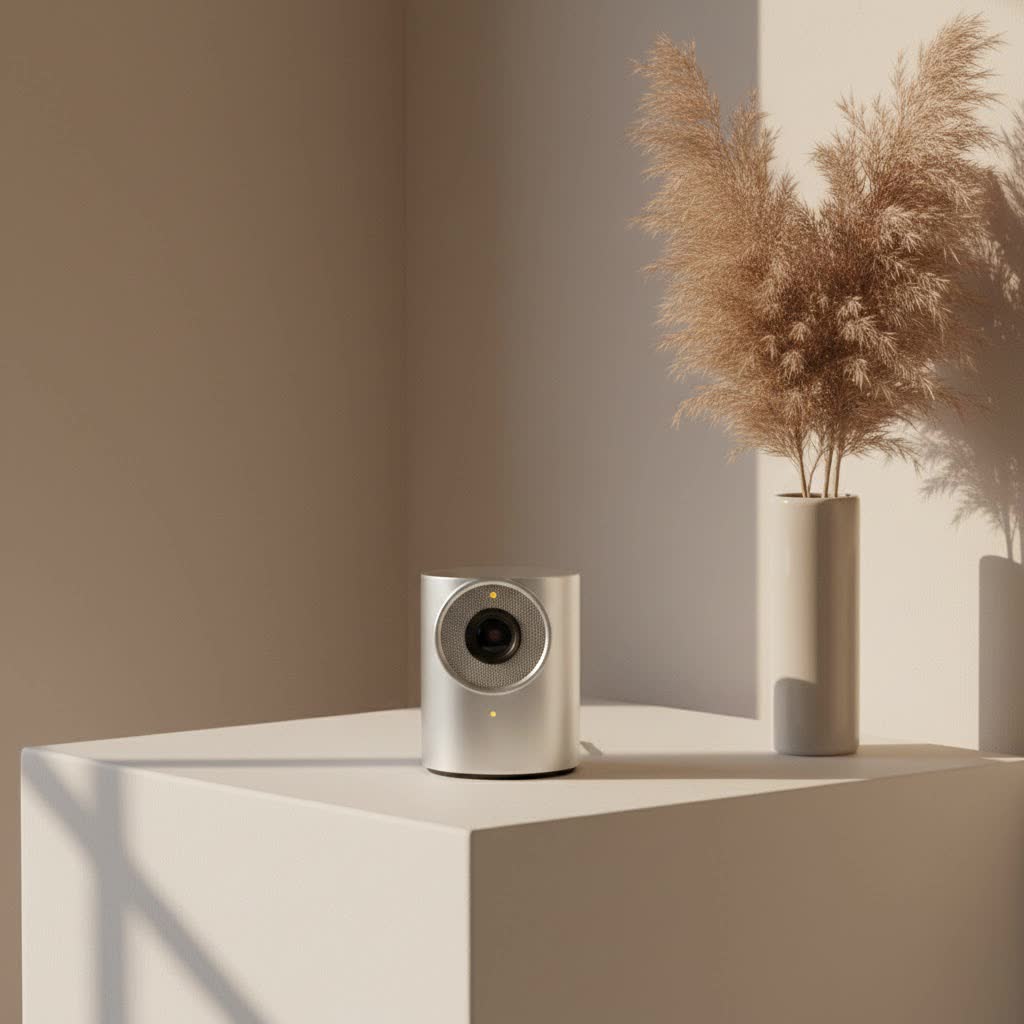
The Evolution of Apple’s Built-in Cameras: A Closer Look
For years, Mac users have relied on the integrated cameras nestled discreetly at the top edge of their displays. These cameras are designed for convenience, automatically activating when you open applications like FaceTime or Photo Booth, or when using features that require visual input. A subtle green light illuminates beside the camera, signaling it’s actively in use—a simple yet effective privacy indicator that Apple has long championed.
While earlier Mac models might have featured more modest camera sensors, Apple has consistently improved the fidelity and features of its built-in offerings in newer devices and the Studio Display. Modern Macs boast enhanced image processing, striving to deliver clearer, more vibrant video quality right out of the box. Importantly, Apple provides granular control over which applications can access your camera, empowering you to manage your privacy directly through System Settings.
Unleashing Your iPhone: Apple’s Continuity Camera Explained
Perhaps the most exciting development in the realm of the “Apple webcam” is Continuity Camera. This ingenious feature seamlessly transforms your iPhone into a high-quality webcam for your Mac, leveraging the powerful optics and advanced computational photography of your smartphone. It’s a true game-changer, eliminating the need for many users to purchase a separate external camera.
The benefits are immediate and substantial. Instead of settling for a potentially lower-resolution built-in camera, you can tap into your iPhone’s superior main camera, which often boasts significantly better sensors, dynamic range, and low-light performance. This means crisp, clear video quality for all your virtual interactions, elevating your professional presence or simply making family calls feel more intimate.
Setting Up Your iPhone as a Mac Webcam: A Step-by-Step Guide
Getting started with Continuity Camera is surprisingly straightforward, embodying Apple’s commitment to user-friendly integration.
Requirements for a Seamless Experience:
- Both your iPhone and Mac must have Wi-Fi and Bluetooth turned on.
- You need to be signed in with the same Apple ID on both devices.
- Keep your devices within 30 feet (10 meters) of each other.
- Ensure both your iPhone (iPhone XR or later) and Mac (running macOS Ventura or later) meet the minimum system requirements for Continuity Camera.
|
Our Picks for the Best Webcam in 2026
As an Amazon Associate I earn from qualifying purchases.
|
||
| Num | Product | Action |
|---|---|---|
| 1 | AOC 4k Webcam for PC with Microphone, Computer Camera with Noise Cancellation, Privacy Cover, 99° FOV, Plug & Play USB Webcam for Streaming, Conferencing, Zoom, Skype, Facetime, Laptop, PC, Skype |

|
| 2 | 1080P Full HD Webcam with Noise-Canceling Mic, Auto Light Correction, Privacy Cover and Wide Angle Lens, Plug & Play USB Camera for Laptop/Desktop/PC/Mac, Compatible with Zoom/Skype/Teams/Streaming |
|
| 3 | Lenovo HD 1080p Webcam (300 FHD)- Black w/ 95° Wide Angle, 360° Rotation Pan & Tilt, Dual Microphones, Privacy Shutter |
|
| 4 | Gohero Full HD 1080P Video Webcam, Noise Cancellation, Privacy Cover, Wide-Angle Lens, Auto Light Correction, Plug & Play USB Webcam for Laptop, Desktop, PC, Mac, Zoom, Skype Pro Series |
|
| 5 | EMEET C960 4K Webcam for PC, 4K UHD Sony Sensor, PDAF Auto Focus, Dual AI Noise-Cancelling Mics, Auto Light Correction, 73° FOV, Plug&Play Webcam w/Privacy Cover, Works w/Zoom/Teams/Skype/Google Meet |
|
| 6 | EMEET 1080P Webcam with Microphone, C960 Web Cam, 2 Mics, 90° FOV, USB Type-A & A-to-C Adapter, Plug&Play Computer Camera for Online Calling, Zoom/Teams/Facetime, Switch 2 Camera Support, 2025 Version |
|
| 7 | TRAUSI 1080P Webcam with Privacy Cover, Wide-Angle Lens, Noise Cancellation, Plug and Play USB Webcam for Laptop/PC/Desktop |
|
| 8 | Logitech Brio 101 Full HD 1080p Webcam for Meetings, Streaming, Desktop, Laptop, PC - Built-in Mic, Shutter, Works with Zoom, Microsoft Teams, Nintendo Switch 2’s New GameChat Mode, USB-A,-Black |
|
| 9 | Kemeiv 1080P Webcam Microphone and Physical Privacy Cover Computer Webcam, Noise-canceling Microphone, Automatic Light Compensation, Ultra-Wide-Angle Lens for Meetings/Courses/Streaming/Zoom/YouTube |
|
| 10 | NIVEOLI Webcam 1080P with Microphone & Privacy Cover for PC/Laptop, USB Computer Camera Plug & Play with Auto Light Correction for Video Calls, Live Streaming Gaming & Online Meetings |
|
Physical Setup: To achieve the best results, mount your iPhone securely using an iPhone-compatible mount or stand. Position it in landscape orientation, with the rear camera facing you. A stable setup is crucial for steady, professional-looking video.
Software Setup:
- Enable on iPhone: On your iPhone, go to the
Settingsapp, tapGeneral, thenAirPlay & Continuity, and finally, turn onContinuity Camera. - Select on Mac: Open any application on your Mac that can access a camera or microphone, such as FaceTime, Photo Booth, or popular third-party video conferencing apps. In the app’s menu bar or settings, simply choose your iPhone as the camera. For example, in FaceTime, click the
Videobutton in the menu bar and select your iPhone.
Wired vs. Wireless Connection: Continuity Camera works wirelessly by default, but you can also connect your iPhone to your Mac with a USB cable. Using a wired connection ensures consistent performance and is highly recommended if you need to charge your iPhone during extended use.
Dive Deep into Continuity Camera’s Advanced Features
Beyond basic video, Continuity Camera unlocks a suite of powerful features that dramatically enhance your output:
- Center Stage: This intelligent feature, available on iPhone 11 or later, uses machine learning to keep you and anyone else with you perfectly framed in the center of the shot, even as you move around. It’s like having a personal camera operator.
- Portrait Mode: Just like on your iPhone for photos, Portrait mode can be applied to your video calls, artfully blurring your background to keep the visual focus squarely on you. This creates a professional, distraction-free aesthetic.
- Studio Light: Need a quick lighting boost? Studio Light subtly brightens your face while dimming the background, mimicking professional lighting setups without any extra gear.
- Desk View: For those moments when you need to share a top-down view of your workspace – perhaps for a presentation or a tutorial – Desk View uses the iPhone’s Ultra Wide camera and advanced image processing to simultaneously show your face and an overhead view of your desk. It’s an incredibly versatile tool for demonstrations.
Quick Fixes: Troubleshooting Continuity Camera Issues
Even with seamless integration, sometimes technology needs a little nudge. If Continuity Camera isn’t working as expected, consider these quick troubleshooting steps:
- Check Connectivity: Ensure both Wi-Fi and Bluetooth are active on both your iPhone and Mac.
- Apple ID & Distance: Confirm you’re signed into the same Apple ID and that your devices are within 30 feet of each other.
- Cables & Permissions: If using a USB cable, try disconnecting and reconnecting. Look for “Trust This Computer?” prompts on your iPhone or “Allow accessory to connect?” alerts on your Mac and grant permission.
- System Requirements: Double-check that both devices meet the minimum software and hardware requirements.
Beyond Apple’s Ecosystem: Choosing an External Webcam for Your Mac
While Apple’s integrated cameras and Continuity Camera offer fantastic solutions, there are valid reasons why some Mac users might still consider an external webcam. Perhaps you own an older Mac with a less capable built-in camera, or you’re looking for specific features not offered by Apple’s current solutions. You might also be a PC user who occasionally uses a Mac and wants a versatile, high-performance option.
When choosing an external webcam compatible with your Mac, consider these key features:
- Resolution and Frame Rate: Look for 1080p Full HD at 30fps (frames per second) for standard quality, or 4K resolution for professional-grade clarity.
- Autofocus: This ensures you remain sharp and in focus, even if you move slightly during your call.
- Microphone Quality: Many external webcams include built-in stereo or noise-canceling microphones, which can be a significant upgrade over a Mac’s internal mic, especially in noisy environments.
- Privacy Features: Some models offer integrated privacy shutters for peace of mind.
Reputable brands like Logitech, Razer, and Jlab offer a wide array of Mac-compatible webcams, each with different price points and feature sets to suit various needs. Options like the Logitech C922 or MX Brio are popular choices for their excellent quality and Mac compatibility.
Expert Tips for Optimizing Your Apple Webcam Experience
As a veteran in the field, I can tell you that the best webcam in the world won’t shine without proper optimization. Here are a few pro tips from the Mundv team to truly make your “Apple webcam” setup stand out:
- Lighting is King: Position yourself facing a soft, diffused light source, like a window during the day or a ring light. Avoid backlighting, which can make you appear as a silhouette.
- Background Matters: A clean, uncluttered background helps keep the focus on you. Consider adding a touch of personality with strategic decor, or leverage virtual backgrounds thoughtfully.
- Elevate Your Angle: Whether using your iPhone or an external webcam, aim for eye-level positioning. This creates a more natural and engaging interaction. Use a mount or stack of books if needed!
- Audio Enhancement: While Continuity Camera uses your iPhone’s excellent microphone, and many external webcams have good mics, consider a dedicated external microphone for truly pristine audio, especially for content creation or professional podcasts.
As Dr. Alistair Finch, a lead analyst at Mundv.com, often reminds us: “The magic of Apple’s ecosystem lies in its seamless integration. Harnessing your iPhone’s camera through Continuity Camera isn’t just about convenience; it’s about unlocking a level of quality and functionality that previously required dedicated, often expensive, hardware. Don’t underestimate the power already in your pocket.”
Frequently Asked Questions (FAQ)
Q: Can I use Continuity Camera with older iPhones or Macs?
A: Continuity Camera requires an iPhone XR or later and a Mac running macOS Ventura or later. Older devices may not support this feature.
Q: Is an external webcam always better than my Mac’s built-in camera?
A: Not necessarily. Newer Macs and the Apple Studio Display have excellent built-in cameras with features like Center Stage. However, an external webcam can offer superior quality compared to older Mac built-in cameras or provide specific features (like higher resolution or specialized lenses) that your current setup might lack.
Q: How do I turn off the green light on my Mac’s camera?
A: The green light indicates your camera is active. It turns off automatically when all apps using the camera are closed or quit. It’s a privacy indicator and cannot be manually disabled while the camera is in use.
Q: What’s the best way to mount my iPhone for Continuity Camera?
A: Dedicated iPhone mounts that clip onto your MacBook screen or stand independently are ideal. They ensure stability and allow for precise positioning, typically in landscape orientation for optimal video.
Q: Can I use Continuity Camera’s Desk View for screen sharing in third-party apps?
A: Yes, you can. After activating Desk View, it will appear as a separate window on your Mac. You can then use your third-party app’s screen sharing feature to select and share the Desk View window with others.
Conclusion
The world of the “Apple webcam” offers a diverse and exciting landscape, catering to a wide range of needs and preferences. Whether you’re leveraging the exceptional capabilities of your iPhone through Continuity Camera, relying on the ever-improving built-in camera of your Mac, or opting for a high-performance external solution, you have more choices than ever to ensure your video presence is crystal clear and professional. We encourage you to explore these options, experiment with features like Center Stage and Desk View, and fine-tune your setup to truly optimize your Apple webcam experience. Share your journey and discoveries with the Mundv community – we’re always here to help you connect visually, confidently, and effectively.
