Tired of typing passwords every time you want to use your computer? Imagine simply sitting down, looking at your screen, and poof – you’re logged in. That’s not science fiction; it’s the everyday reality of a Windows Hello Webcam. As your go-to expert with over 15 years in webcam technology and a content creator for Mundv.com, I’m here to demystify this brilliant feature and show you how to enhance your digital security and convenience.
What Exactly is a Windows Hello Webcam?
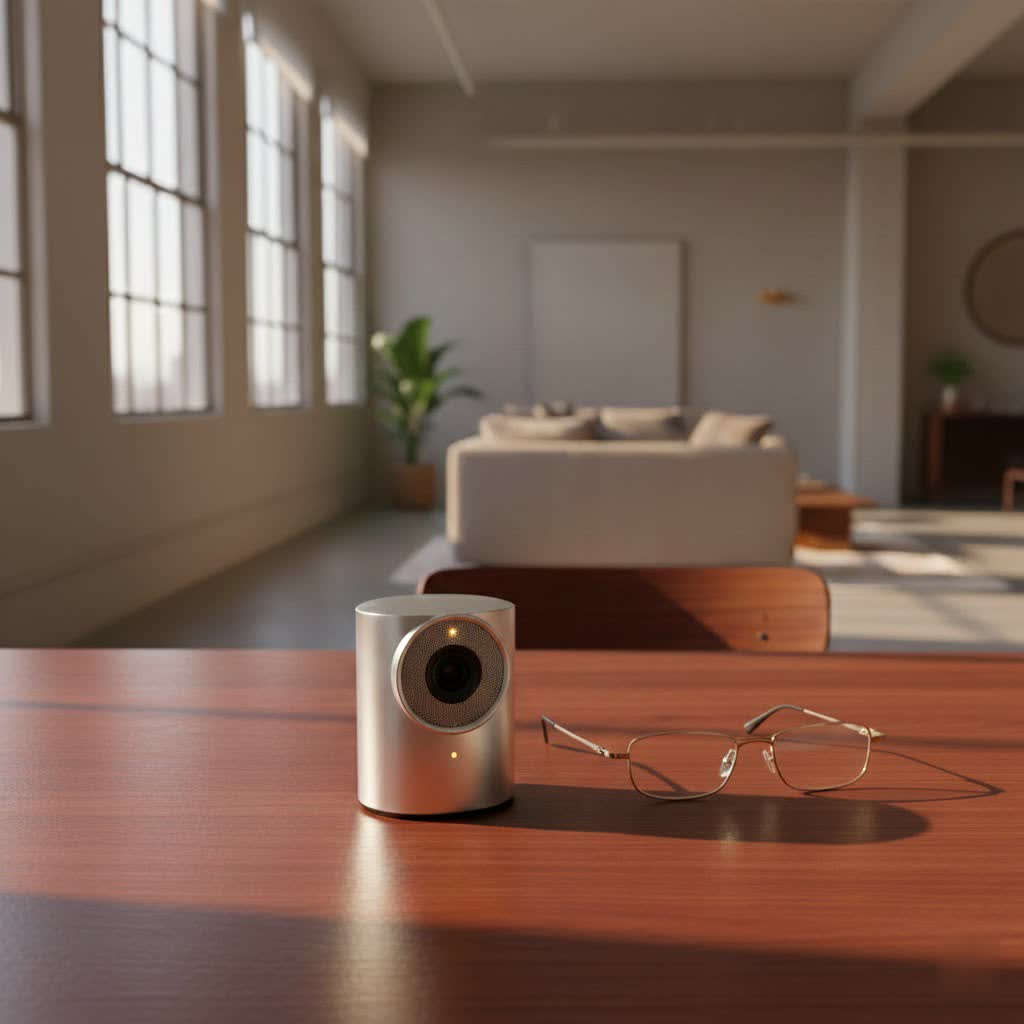
At its core, a Windows Hello webcam isn’t just any old camera you use for video calls. It’s a specialized piece of hardware designed to leverage Microsoft’s biometric security system, Windows Hello, primarily through facial recognition. Instead of a password, your unique face becomes the key to unlocking your Windows 10 or Windows 11 device. This technology relies on infrared (IR) cameras and, in recent updates, visible-light (RGB) cameras to create a sophisticated, three-dimensional map of your face, ensuring that only you can gain access.
The Magic Behind the Glance: How Windows Hello Facial Recognition Works
Have you ever wondered how your PC can recognize you so quickly? It’s all thanks to advanced biometric authentication. When you set up Windows Hello, the webcam scans your face using its specialized IR sensors, capturing detailed depth information and distinguishing you from a flat image or even a sophisticated mask. This data creates a unique, encrypted profile of your face, stored locally on your device. Every time you log in, the webcam performs a quick scan, compares it to your stored profile, and grants you access if there’s a match. This entire process happens in a blink, making it incredibly fast and efficient.
“Windows Hello goes beyond simple image recognition; it’s about authenticating your physical presence,” explains Dr. Anya Sharma, a leading biometrics security researcher. “The blend of infrared and visible light data creates a robust defense against spoofing attempts, ensuring your login is truly yours.”
Why You Need a Windows Hello Webcam: Beyond Just Speed
While the speed of logging in is certainly a major perk, the benefits of incorporating a Windows Hello webcam into your setup run much deeper, touching on both security and sheer convenience.
Unparalleled Security
Traditional passwords are, let’s face it, a bit of a relic. They can be forgotten, guessed, phished, or even stolen. Windows Hello drastically elevates your security posture.
- Biometric Uniqueness: Your face is unique. Unlike a password that can be replicated, biometric data is incredibly difficult to fake.
- Anti-Spoofing Technology: Advanced depth-sensing capabilities and the use of IR cameras help Windows Hello differentiate between a live face and a photograph or video. This prevents unauthorized access from simple spoofing attempts.
- Multi-Factor Authentication (MFA): In many ways, Windows Hello acts as a form of multi-factor authentication, combining “something you are” (your face) with “something you have” (your device, as the biometric data is locally bound).
- Local Data Storage: Crucially, your biometric data is stored securely on your local device and never transmitted to external servers. This eliminates a central point of attack for hackers looking to steal vast amounts of personal information.
|
Our Picks for the Best Webcam in 2026
As an Amazon Associate I earn from qualifying purchases.
|
||
| Num | Product | Action |
|---|---|---|
| 1 | EMEET C960 4K Webcam for PC, 4K UHD Sony Sensor, PDAF Auto Focus, Dual AI Noise-Cancelling Mics, Auto Light Correction, 73° FOV, Plug&Play Webcam w/Privacy Cover, Works w/Zoom/Teams/Skype/Google Meet |

|
| 2 | Lenovo HD 1080p Webcam (300 FHD)- Black w/ 95° Wide Angle, 360° Rotation Pan & Tilt, Dual Microphones, Privacy Shutter |
|
| 3 | 1080P Full HD Webcam with Noise-Canceling Mic, Auto Light Correction, Privacy Cover and Wide Angle Lens, Plug & Play USB Camera for Laptop/Desktop/PC/Mac, Compatible with Zoom/Skype/Teams/Streaming |
|
| 4 | AOC 4k Webcam for PC with Microphone, Computer Camera with Noise Cancellation, Privacy Cover, 99° FOV, Plug & Play USB Webcam for Streaming, Conferencing, Zoom, Skype, Facetime, Laptop, PC, Skype |
|
| 5 | TRAUSI 1080P Webcam with Privacy Cover, Wide-Angle Lens, Noise Cancellation, Plug and Play USB Webcam for Laptop/PC/Desktop |
|
| 6 | Gohero Full HD 1080P Video Webcam, Noise Cancellation, Privacy Cover, Wide-Angle Lens, Auto Light Correction, Plug & Play USB Webcam for Laptop, Desktop, PC, Mac, Zoom, Skype Pro Series |
|
| 7 | Logitech Brio 101 Full HD 1080p Webcam for Meetings, Streaming, Desktop, Laptop, PC - Built-in Mic, Shutter, Works with Zoom, Microsoft Teams, Nintendo Switch 2’s New GameChat Mode, USB-A,-Black |
|
| 8 | EMEET 1080P Webcam with Microphone, C960 Web Cam, 2 Mics, 90° FOV, USB Type-A & A-to-C Adapter, Plug&Play Computer Camera for Online Calling, Zoom/Teams/Facetime, Switch 2 Camera Support, 2025 Version |
|
| 9 | NIVEOLI Webcam 1080P with Microphone & Privacy Cover for PC/Laptop, USB Computer Camera Plug & Play with Auto Light Correction for Video Calls, Live Streaming Gaming & Online Meetings |
|
| 10 | Kemeiv 1080P Webcam Microphone and Physical Privacy Cover Computer Webcam, Noise-canceling Microphone, Automatic Light Compensation, Ultra-Wide-Angle Lens for Meetings/Courses/Streaming/Zoom/YouTube |
|
Effortless Convenience
Imagine never having to remember a complex password again for your PC.
- Instant Access: A quick glance is all it takes. No more fumbling with keyboard entries or trying to recall that obscure password you set months ago.
- Seamless Integration: Windows Hello integrates smoothly with the Windows ecosystem, allowing you to not only log into your device but also authorize app purchases and access compatible applications.
- Passkey Support: With the advent of passkeys, Windows Hello extends its convenience to supported websites and online services, allowing you to log in with a look instead of a password.
The Essentials: What Your Windows Hello Webcam Needs
To join the ranks of facial recognition users, your webcam needs specific hardware features.
Infrared (IR) Camera: The Core Component
The most critical requirement for a Windows Hello webcam is an integrated infrared camera or depth sensor. Standard RGB webcams, while great for video calls, lack the ability to capture the necessary depth information for secure facial recognition. The IR camera creates the detailed 3D map of your face that Windows Hello relies on.
Visible-Light (RGB) Camera: The Latest Enhancement
In a significant security update rolled out in April 2025, Microsoft introduced a new requirement for Windows Hello facial recognition: the simultaneous use of both an IR camera and a visible-light (RGB) camera. This enhancement aims to further strengthen biometric security by requiring the system to “see a visible face” for authentication. While this improves security, it’s important to note that it means Windows Hello facial recognition may no longer function in complete darkness as it once did with IR-only cameras.
Windows 10 or Windows 11
Naturally, to use Windows Hello, your computer must be running a compatible version of the Windows operating system. This feature is standard in Windows 10 and 11.
Setting Up Your Windows Hello Webcam: A Step-by-Step Guide
Getting started with your new biometric login is straightforward. Follow these steps to set up facial recognition with your Windows Hello webcam:
- Connect Your Webcam: If you’re using an external Windows Hello webcam, plug it into an available USB port on your PC. Most compatible webcams are plug-and-play for basic functionality.
- Set Up a PIN First: Before you can enable facial recognition, Windows requires you to set up a PIN as a backup login method.
- Go to
Start > Settings > Accounts > Sign-in options. - Under “Ways to sign in,” select
PIN (Windows Hello)and clickSet up. - Follow the prompts to create a strong, memorable PIN.
- Go to
- Configure Facial Recognition:
- Back in
Sign-in options, locateFacial recognition (Windows Hello). - Click
Set up. If the option is grayed out, your hardware might not be compatible, or organizational policies may restrict its use. - Click
Get startedwhen the “Welcome to Windows Hello” box appears. - You’ll be asked to verify your identity, often by entering your account password or the PIN you just created.
- Scan Your Face: Position your face directly in front of the webcam, centered in the on-screen frame. Look directly into the camera. Windows Hello will scan your face, capturing the necessary biometric data.
- Improve Recognition (Optional but Recommended): If you wear glasses, change your hairstyle often, or use your computer in varying lighting conditions, you can click “Improve recognition” to perform additional scans. This helps the system learn variations in your appearance.
- Back in
- Enjoy Instant Login: Once set up, the next time you boot up or wake your PC, simply look at your webcam, and Windows Hello will log you in automatically.
Choosing the Right Windows Hello Webcam for You
With several excellent options on the market, selecting the perfect Windows Hello webcam can feel daunting. Here’s what to consider:
- Resolution: While 1080p (Full HD) is a great starting point for clear video calls and good facial recognition, a 4K webcam like the Logitech Brio 4K Ultra HD Webcam offers superior image quality for both conferencing and precise biometric scanning.
- Frame Rate: A higher frame rate, such as 60fps, provides smoother, more lifelike video. Most 4K webcams are limited to 30fps at their highest resolution, so you might choose between a sharper image (4K/30fps) or smoother motion (1080p/60fps).
- Autofocus vs. Fixed Focus: Autofocus helps keep you sharp even if you move around your workspace, which is a nice-to-have feature. Fixed-focus cameras are generally fine if you stay relatively still.
- Low-Light Performance: While Windows Hello now requires some visible light, a webcam with good low-light capabilities and advanced light correction (like HDR) will ensure you look your best during video calls and help Windows Hello recognize you reliably in less-than-ideal lighting.
- Privacy Features: Many modern webcams include a built-in privacy shutter, a simple physical cover you can slide over the lens when not in use. This offers peace of mind against accidental activation or potential snooping.
- Price: Windows Hello webcams are available across various price points. Budget-friendly options like the Lenovo Performance FHD Webcam or the TOALLIN 2K QHD Webcam offer reliable biometric login without breaking the bank, while premium choices provide advanced video features.
Popular Windows Hello Webcam Options:
- Lenovo Performance FHD Webcam: A solid, affordable 1080p option that reliably delivers Windows Hello functionality and good image quality.
- Logitech Brio 4K Ultra HD Webcam: A premium choice known for its 4K resolution, HDR support, adjustable field of view, and excellent overall performance, making it a favorite for both security and high-quality video.
- NexiGo HelloCam Pro: Another well-regarded 1080p webcam that offers Windows Hello, autofocus, and a convenient automated privacy cover.
Troubleshooting Common Windows Hello Webcam Issues
Even the best technology can have its quirks. Here are a few common issues and how to address them:
- “This option is currently unavailable”: This usually indicates that your PC lacks a compatible IR camera, or your organization’s IT policies might be preventing the setup. Check your device specifications or contact your administrator.
- Webcam not recognizing you: Changes in your appearance (new glasses, a beard), or significant lighting variations can sometimes confuse Windows Hello. Go to
Settings > Accounts > Sign-in options > Facial recognition (Windows Hello)and selectImprove recognitionto update your facial profile. - Poor lighting: Ensure you are in a well-lit environment, especially with Microsoft’s new requirement for visible light alongside IR for enhanced security.
- External vs. Internal Camera Selection: If you have multiple cameras, Windows Hello should ideally default to the compatible one. If not, some advanced users have found that enabling “Enhanced Sign-In Security” in BIOS/UEFI can sometimes offer options to select a preferred camera, though this can erase existing biometric data.
Frequently Asked Questions (FAQ)
Q1: Is a Windows Hello webcam truly more secure than a password?
A: Yes, a Windows Hello webcam offers a significantly higher level of security than traditional passwords. Biometric data like facial features is unique and difficult to replicate, and the system employs anti-spoofing technology to prevent unauthorized access.
Q2: Can Windows Hello recognize me if I wear glasses or change my appearance?
A: In most cases, yes. Windows Hello is designed to adapt to minor changes in your appearance, such as wearing glasses. However, for best results and reliability, it’s recommended to use the “Improve recognition” feature in settings if you frequently change your look or start wearing glasses.
Q3: Do I need special software for my Windows Hello webcam?
A: For basic Windows Hello facial recognition, often no additional software is needed beyond what Windows provides. However, some webcam manufacturers offer utility software that can unlock advanced features, like fine-tuning image quality or adjusting the field of view.
Q4: Can multiple users set up Windows Hello on the same PC?
A: Absolutely! Windows Hello supports multiple user profiles on a single device. Each user can set up their own unique facial recognition or PIN, allowing for secure and convenient individual logins on shared computers.
Q5: What if my Windows Hello webcam stops working in the dark?
A: As of Microsoft’s April 2025 security update, Windows Hello facial recognition now requires both an infrared (IR) camera and a visible-light (RGB) camera. This means it relies on ambient light and may not function in complete darkness to enhance security.
Q6: Can I use Windows Hello for things other than logging into my PC?
A: Yes! Beyond device login, Windows Hello can also be used to authenticate app purchases, access specific features within compatible applications, and with the introduction of passkeys, it can even facilitate passwordless logins to supported websites and online services.
The Future of Seamless Security
Embracing a Windows Hello webcam isn’t just about upgrading your hardware; it’s about upgrading your entire computing experience. It’s a step towards a more secure, convenient, and personal interaction with your PC. The days of typing complex passwords are fading fast, replaced by the effortless security of a simple glance. So, go ahead, unlock the potential of your Windows device, and experience the future of secure login today. Your face is your password, and it’s never been safer or more convenient.
