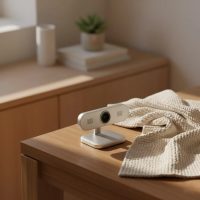
As a seasoned professional with over 15 years in webcam and recording technology, and a content creator for Mundv.com, I’ve seen countless innovations reshape how we connect and create. While your Mac is a powerhouse, its built-in camera often acts as a bottleneck, limiting your potential for crystal-clear video calls, engaging live streams, and high-quality content. Investing in an external webcam for Mac isn’t just about looking better; it’s about unlocking a new level of professionalism and creativity.
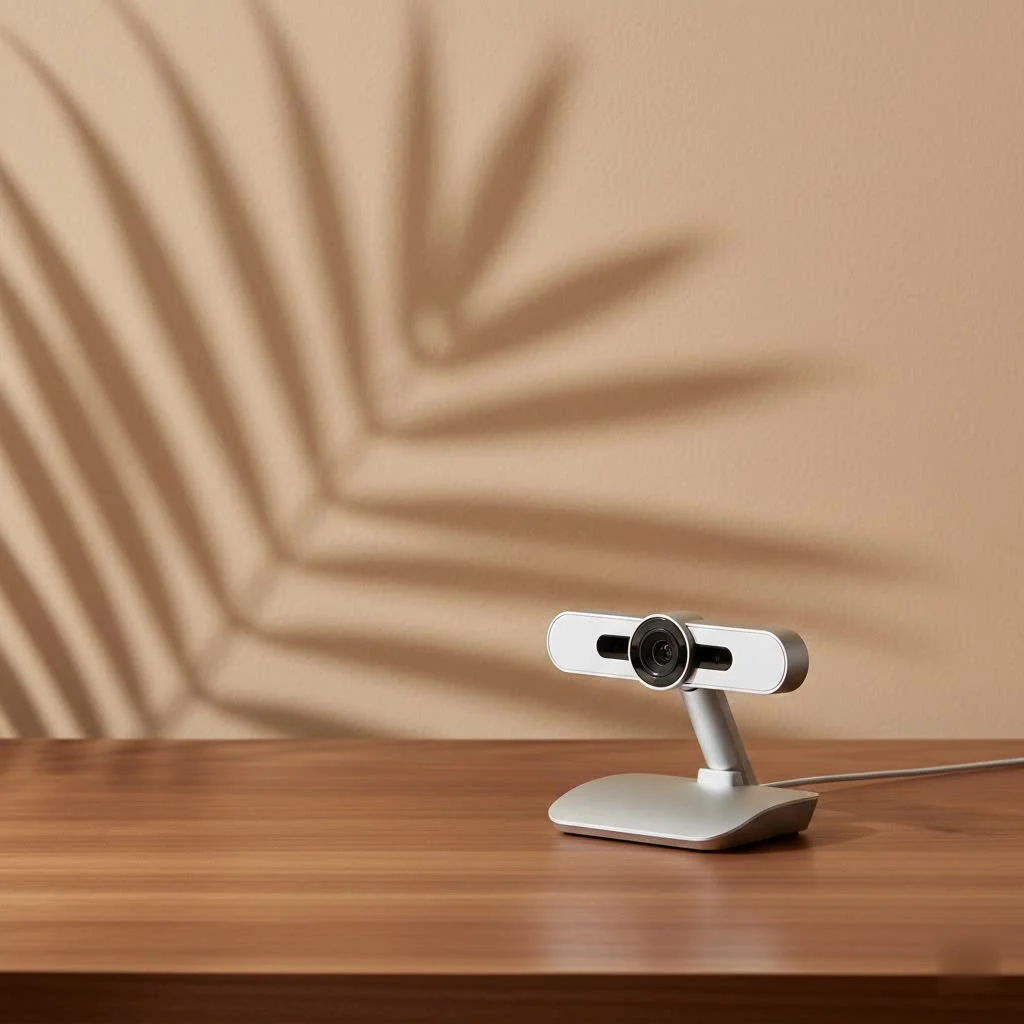
Think about it: whether you’re brainstorming with colleagues across continents, sharing your passion project with a global audience, or simply catching up with loved ones, your webcam is your window to the world. A quality external webcam ensures that window is spotless, offering superior resolution, better low-light performance, and a host of features designed to make you shine. Let’s dive deep into how to select and optimize the ideal webcam for Mac to elevate your digital presence.
Why Your Mac Deserves an External Webcam Upgrade
For years, the integrated cameras in MacBooks and iMacs have served a basic purpose. However, in today’s visually-driven world, where remote work, online learning, and content creation are norms, a “basic” 720p or even 1080p built-in camera often falls short. These internal cameras struggle in less-than-ideal lighting, lack advanced features like autofocus, and offer limited flexibility in framing.
An external webcam for Mac bypasses these limitations entirely. It provides a dedicated, high-performance lens and sensor system, often delivering resolutions up to 4K, smoother frame rates, and intelligent light correction. This translates to sharper images, more vibrant colors, and a significant boost in overall video quality. For users of Mac Mini or Mac Studio, an external webcam is, of course, a necessity, but even MacBook Pro users will find a substantial improvement, transforming mundane video calls into engaging visual experiences.
Key Features to Consider When Buying a Webcam for Mac
Navigating the world of webcams can feel overwhelming with all the technical jargon. As your trusted guide from Mundv, I’ll break down the essential features you should prioritize to find the perfect webcam for Mac.
Resolution & Frame Rate: The Heart of Your Video Quality
When it comes to image fidelity, resolution and frame rate are paramount.
- 1080p (Full HD): This is the sweet spot for most users. A 1080p webcam for Mac at 30 frames per second (fps) offers excellent clarity for video conferencing and casual streaming. If you’re a content creator or streamer, aiming for 1080p at 60fps will provide a noticeably smoother, more fluid video, crucial for fast-paced action or a more polished look.
- 4K (Ultra HD): For those seeking the absolute best, a 4K webcam for Mac at 30fps offers incredible detail and future-proofs your setup. While not all platforms fully support 4K streaming yet, recording in 4K for later uploads to YouTube or other video services can dramatically enhance your content. Keep in mind that 4K requires more processing power from your Mac and a USB 3.0 port for optimal performance.
Field of View (FoV): Framing Your Shot Just Right
|
Our Picks for the Best Webcam in 2026
As an Amazon Associate I earn from qualifying purchases.
|
||
| Num | Product | Action |
|---|---|---|
| 1 | NIVEOLI Webcam 1080P with Microphone & Privacy Cover for PC/Laptop, USB Computer Camera Plug & Play with Auto Light Correction for Video Calls, Live Streaming Gaming & Online Meetings |

|
| 2 | EMEET C960 4K Webcam for PC, 4K UHD Sony Sensor, PDAF Auto Focus, Dual AI Noise-Cancelling Mics, Auto Light Correction, 73° FOV, Plug&Play Webcam w/Privacy Cover, Works w/Zoom/Teams/Skype/Google Meet |
|
| 3 | Kemeiv 1080P Webcam Microphone and Physical Privacy Cover Computer Webcam, Noise-canceling Microphone, Automatic Light Compensation, Ultra-Wide-Angle Lens for Meetings/Courses/Streaming/Zoom/YouTube |
|
| 4 | Lenovo HD 1080p Webcam (300 FHD)- Black w/ 95° Wide Angle, 360° Rotation Pan & Tilt, Dual Microphones, Privacy Shutter |
|
| 5 | TRAUSI 1080P Webcam with Privacy Cover, Wide-Angle Lens, Noise Cancellation, Plug and Play USB Webcam for Laptop/PC/Desktop |
|
| 6 | 1080P Full HD Webcam with Noise-Canceling Mic, Auto Light Correction, Privacy Cover and Wide Angle Lens, Plug & Play USB Camera for Laptop/Desktop/PC/Mac, Compatible with Zoom/Skype/Teams/Streaming |
|
| 7 | Logitech Brio 101 Full HD 1080p Webcam for Meetings, Streaming, Desktop, Laptop, PC - Built-in Mic, Shutter, Works with Zoom, Microsoft Teams, Nintendo Switch 2’s New GameChat Mode, USB-A,-Black |
|
| 8 | AOC 4k Webcam for PC with Microphone, Computer Camera with Noise Cancellation, Privacy Cover, 99° FOV, Plug & Play USB Webcam for Streaming, Conferencing, Zoom, Skype, Facetime, Laptop, PC, Skype |
|
| 9 | EMEET 1080P Webcam with Microphone, C960 Web Cam, 2 Mics, 90° FOV, USB Type-A & A-to-C Adapter, Plug&Play Computer Camera for Online Calling, Zoom/Teams/Facetime, Switch 2 Camera Support, 2025 Version |
|
| 10 | Gohero Full HD 1080P Video Webcam, Noise Cancellation, Privacy Cover, Wide-Angle Lens, Auto Light Correction, Plug & Play USB Webcam for Laptop, Desktop, PC, Mac, Zoom, Skype Pro Series |
|
Field of View refers to how much of the scene your webcam can capture.
- Narrow (65-70 degrees): Ideal for single-person shots, focusing tightly on your face without much background distraction.
- Standard (78-82 degrees): A versatile option for individual use, offering a bit more room to breathe without showing too much of your surroundings.
- Wide (90-110 degrees): Perfect for group meetings, presentations where you need to show a whiteboard, or showcasing a well-designed office space. Be aware that very wide angles can sometimes introduce a “fisheye” distortion at the edges.
Autofocus & Low-Light Performance: Always Look Your Best
These features are non-negotiable for a premium experience.
- Autofocus: A good webcam for Mac will automatically adjust its focus to keep you sharp, even if you move. This is a significant upgrade from fixed-focus cameras that can leave you blurry if you’re not at the exact optimal distance.
- Low-Light Correction: Many external webcams feature advanced sensors and software that automatically adjust exposure and white balance, ensuring you look well-lit and natural even in dimly lit rooms. Features like Logitech’s RightLight or similar HDR capabilities are a game-changer for challenging lighting conditions.
Microphone Quality & Alternatives: Sounding as Good as You Look
While many webcams include built-in microphones, their quality can vary.
- Built-in Mics: Adequate for casual video calls. Look for models with dual omnidirectional mics or noise-canceling features for clearer audio.
- External Mics: For professional streaming, podcasting, or critical business calls, an external USB microphone is almost always superior. “Clear audio is just as important, if not more important, than crystal-clear video,” states Sarah Chen, a leading audio engineer and content strategy consultant at Mundv. “You can forgive slightly lower video quality, but poor audio will quickly disengage your audience.”
Connectivity: USB-A, USB-C, and Adapter Considerations
Most webcams connect via USB.
- USB-A: The traditional rectangular port. Most webcams still use this, and you might need a USB-A to USB-C adapter if your Mac only has USB-C ports.
- USB-C: Becoming more common, especially for 4K webcams. USB-C offers faster data transfer speeds, which is beneficial for high-resolution video.
Privacy Features: Peace of Mind in a Connected World
A physical privacy shutter or cap is a simple yet crucial feature that gives you control over when your camera is active, protecting you from unintended broadcasts and potential security breaches. It’s a small detail that provides significant peace of mind.
Software & Customization: Unlocking Advanced Features
Many top-tier webcams come with dedicated companion software (e.g., Logitech Capture, Elgato Camera Hub). These applications allow you to fine-tune settings like exposure, white balance, zoom, and frame rate, and even add effects or combine multiple camera feeds for more dynamic content creation.
AI-Powered Features: The Future of Webcams
Newer webcams are integrating Artificial Intelligence for features like:
- AI Tracking: Automatically keeps you centered in the frame as you move.
- Auto-Framing: Adjusts the FoV to optimally frame subjects, even if multiple people enter the shot.
- Intelligent Lighting & Color Correction: Dynamically adjusts to ensure you look your best without manual intervention.
Top Webcams for Mac: Recommendations for Every Need
Based on extensive testing and user feedback, here are some of the best webcam for Mac options, catering to diverse requirements.
Overall Best: Logitech C920s Pro HD / C922 Pro Stream
These Logitech models consistently rank high for their balanced performance and value. The C920s Pro HD offers sharp 1080p video at 30fps with reliable autofocus and light correction, plus a privacy shutter, making it an excellent all-rounder for everyday use. The C922 Pro Stream builds on this, adding 720p at 60fps for smoother streaming, making it a favorite for aspiring content creators. They are largely plug-and-play with macOS, and Logitech’s Capture software enhances customization.
Best for 4K Quality: Logitech Brio Ultra HD Pro / Lumina AI Webcam / Insta360 Link
If you’re ready for the ultimate in video clarity, these 4K contenders deliver.
- Logitech Brio Ultra HD Pro: A long-standing leader in 4K webcams, offering crisp Ultra HD video at 30fps, HDR support for vibrant colors, and adjustable fields of view. It’s built for professionals who demand the best.
- Lumina AI Webcam: Known for its impressive 4K resolution and AI-powered features, including intelligent exposure and color.
- Insta360 Link: This AI-powered 4K webcam is a game-changer with its gimbal design for precise AI tracking and gesture control, providing a dynamic and engaging video experience.
Best for Streaming & Content Creation: Elgato Facecam / Logitech StreamCam
Content creators have specific needs, and these webcams rise to the occasion.
- Elgato Facecam: Engineered specifically for streamers, it delivers exceptional 1080p at 60fps with a high-quality Sony STARVIS CMOS sensor, ensuring stunning clarity and smooth motion. It focuses on video quality, assuming you’ll use an external mic.
- Logitech StreamCam: Designed with live streamers in mind, offering 1080p at 60fps, intelligent exposure, auto-framing, and vertical video support – perfect for Instagram or TikTok content. Its USB-C connectivity ensures fast data transfer.
Best for Business & Video Conferencing: Anker PowerConf C300 / Logitech C930e
For the professional environment, reliability and clarity are key.
- Anker PowerConf C300: This webcam offers excellent 1080p at 60fps with AI-powered features like intelligent lighting, framing, and color adjustments, ensuring you look sharp during business presentations. It’s a strong competitor to established brands.
- Logitech C930e: Certified for major video conferencing platforms like Zoom and Microsoft Teams, the C930e provides 1080p video, a wide 90-degree field of view, and H.264 video compression for smooth, lag-free calls.
Best Budget-Friendly Option: NexiGo Streaming Webcam / Wansview 1080p Webcam
You don’t need to break the bank for a decent webcam for Mac.
- NexiGo Streaming Webcam: Offers reliable 1080p at 30fps with a wide 90-degree field of view and automatic color adjustment, providing solid performance for its price point.
- Wansview 1080p Webcam: Delivers surprisingly crisp 1080p video with good low-light performance for a budget option. While it lacks autofocus, its manual focus adjustment is sufficient for most static setups.
Best for Unique Features: Razer Kiyo / Obsbot Tiny 2
For those with specific needs, these webcams offer unique advantages.
- Razer Kiyo: Perfect for gamers and streamers, it features a built-in adjustable ring light that provides flattering illumination, eliminating the need for external lighting in many situations. While its full software features are not always Mac-compatible, it works well as a basic plug-and-play device with lighting.
- Obsbot Tiny 2: A premium AI-powered webcam with a physical gimbal that literally follows your movements, making it ideal for presentations, tutorials, or active content creation where you need to move freely.
Setting Up Your Mac Webcam Like a Pro: Tips from Mundv
Even the best webcam won’t perform optimally without proper setup. Here are some expert tips to ensure you look and sound your best.
Optimal Placement: Eye-Level is Key
Positioning your webcam at eye level is crucial.
- Mount it directly above your monitor or use a small tripod to achieve this height.
- Aim to be about two feet away from the camera. This distance allows for a natural perspective and helps the autofocus work effectively.
- Your head should occupy the upper third of the frame, leaving a small amount of headroom. Avoid having too much empty space above you or being too close, which can distort your features.
Lighting Essentials: Shine Bright, Not Washed Out
Good lighting is perhaps the most significant factor in video quality, even more so than webcam resolution.
- Natural Light: Position yourself facing a window. Natural, diffused light from the front is the most flattering. Avoid sitting with a bright window behind you, as this will silhouette you.
- Artificial Light: If natural light isn’t available, use a soft, diffused light source in front of you. A ring light or an LED panel light can work wonders. Avoid harsh overhead lighting, which can create unflattering shadows. Place desk lamps behind your webcam, reflecting off a wall, to create ambient lighting.
Audio Excellence: Why an External Mic Matters
While integrated webcam microphones have improved, an external microphone almost always delivers superior sound.
- For basic calls, your Mac’s built-in mic or even your AirPods Pro mic can suffice.
- For professional use, consider a dedicated USB microphone. Position it close to you but out of frame. This significantly reduces background noise and captures your voice with greater clarity and richness.
Software Configuration: Fine-Tuning for Best Performance
Don’t just plug and play. If your webcam comes with companion software, take the time to explore its settings. You can often adjust:
- Exposure: Brighten or darken your image.
- White Balance: Ensure colors are accurate, especially skin tones.
- Zoom & Pan: Adjust your frame to highlight specific areas or yourself.
- Effects: Some software offers background blurring, virtual backgrounds, or other creative effects.
Expert Insights: Beyond the Specs
“Choosing a webcam for Mac isn’t just about the megapixel count or the frame rate; it’s about how well it integrates into your daily workflow and enhances your personal brand,” says Anya Sharma, Mundv’s lead hardware analyst. “The true value lies in how a webcam makes you feel confident and seen, whether you’re closing a deal or connecting with family.” This holistic approach ensures you select a device that truly serves your needs, not just a list of specifications.
Frequently Asked Questions (FAQ)
Q: Do I need special drivers for a webcam on Mac?
A: Most modern webcams are plug-and-play with macOS, meaning they will work right out of the box without needing additional drivers. However, some webcams come with optional companion software (like Logitech Capture) that allows for advanced customization and features.
Q: Can I use a 4K webcam if my streaming service only supports 1080p?
A: Yes, you can. A 4K webcam will simply downscale its output to 1080p or whatever the maximum resolution your streaming service supports. While you won’t get the full 4K benefit in that specific live stream, you’ll still experience superior image quality due to the better sensor and optics. You can also record in 4K locally for future use.
Q: What’s the difference between 30fps and 60fps for a webcam?
A: FPS (frames per second) determines the smoothness of your video. 30fps is standard and looks perfectly natural for most video calls. 60fps provides a much smoother, more fluid motion, which is highly beneficial for fast-paced content like gaming streams or any scenario where subtle movements need to be captured with precision.
Q: Is a built-in microphone good enough for everyday use?
A: For casual video calls with friends and family, a good built-in microphone on a quality webcam is often sufficient. However, for professional calls, content creation, or any situation where clear, high-fidelity audio is crucial, an external USB microphone is strongly recommended for superior sound quality and noise reduction.
Q: How do I know if a webcam is compatible with my Mac?
A: Check the webcam’s specifications for macOS compatibility (e.g., “macOS 10.10 or later”). Most reputable webcam manufacturers ensure broad compatibility with current and recent macOS versions. If in doubt, refer to the manufacturer’s website or product reviews.
Q: What does “field of view” mean and why is it important?
A: Field of View (FoV) refers to the angular extent of the scene captured by the camera. It’s important because it dictates how much of your background and surroundings will be visible in your video. A narrower FoV (e.g., 65-70 degrees) focuses tightly on you, while a wider FoV (e.g., 90-110 degrees) can capture more people or a broader background, useful for group calls or showcasing your environment.
Elevate Your Mac Experience with the Right Webcam
Upgrading your webcam for Mac is one of the most impactful ways to enhance your online presence. Whether you’re a student, a remote professional, an aspiring streamer, or a seasoned content creator, the right webcam empowers you to communicate with clarity, confidence, and charisma. From crisp 4K visuals and intelligent autofocus to privacy shutters and AI-powered tracking, the options available today are designed to meet every need and budget.
Don’t settle for mediocre video quality. Invest in a webcam for Mac that truly reflects your best self. Explore the recommendations, consider the key features that matter most to you, and take the plunge. Your audience, colleagues, and loved ones will thank you for the clearer, more engaging connection. Start optimizing your webcam setup today and unleash your full potential in the digital realm!
Get our weekly buyer guide
Practical specs, not advice. Unsubscribe anytime.