The Logitech C920 Webcam remains an enduring champion for quality video, offering crisp Full HD 1080p at 30 frames per second, reliable autofocus, and effective lighting correction for over a decade. Priced affordably, it consistently delivers exceptional performance for streamers, professionals, and casual users, making it a top choice even against newer, more expensive models.
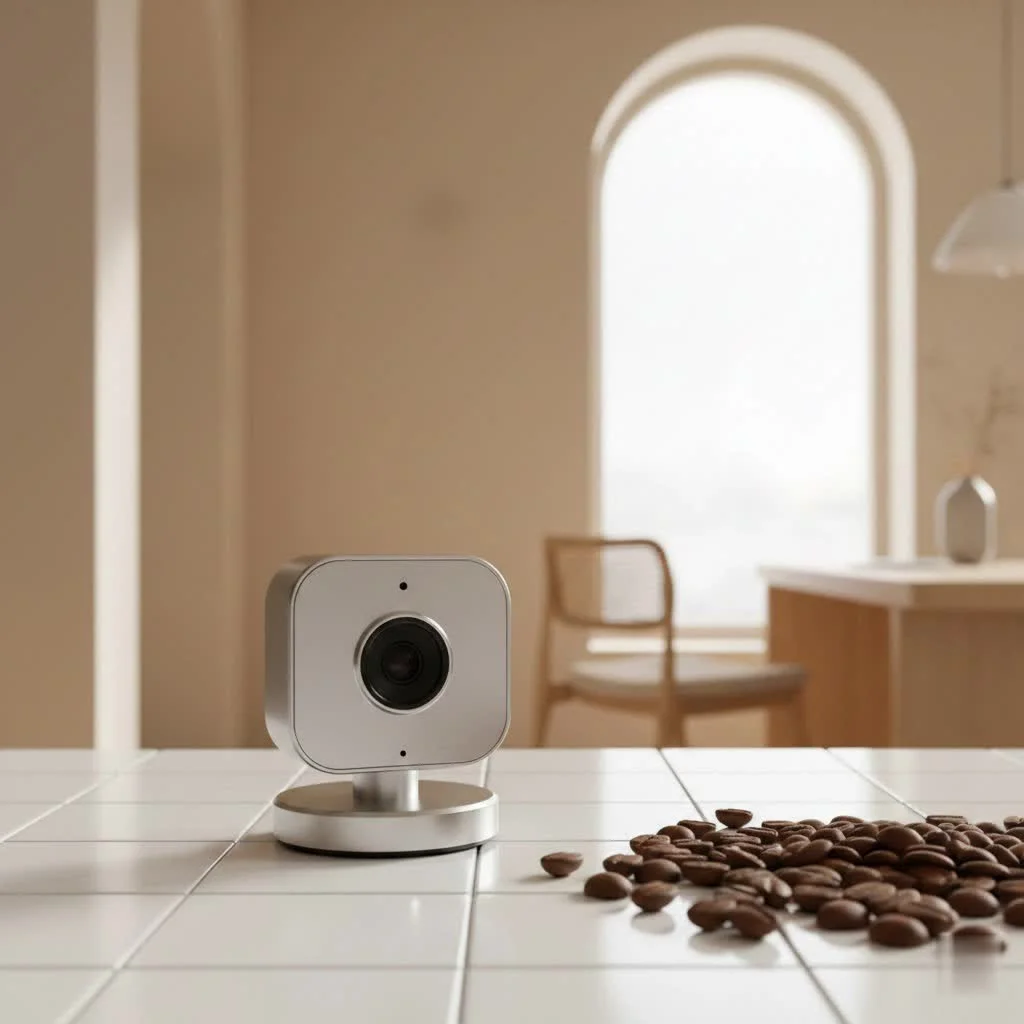
Why the Logitech C920 Still Reigns Supreme
The longevity of the Logitech C920 isn’t merely about nostalgia; it’s a direct result of its consistent performance and value proposition. It truly delivers where it counts, offering features that remain competitive despite its age.
Unmatched Video Quality for its Price Point
The C920 shines with its ability to produce crisp, clear Full HD 1080p video at 30 frames per second. For many users, this resolution and frame rate strike the perfect balance for professional video calls and content creation. Early versions of the webcam featured a renowned Carl Zeiss glass lens, which contributed to its sharp, detailed, and true-to-life image capture. Even newer iterations maintain this high standard with a 5-element Full HD glass lens, consistently delivering excellent color accuracy that often rivals more expensive modern alternatives.
Reliable Autofocus and Lighting Correction
One of the C920’s standout features is its responsive 20-step autofocus system, ensuring you remain sharp and clear even if you shift slightly in your seat. Gone are the days of pixelated or blurry video calls. Complementing this is Logitech’s RightLight 2 technology, which automatically corrects HD exposure. This intelligent feature adapts to various lighting conditions, from bright offices to dimly lit rooms, working to present you in the best possible light. While no webcam can magically turn a dark cave into a studio, the C920 does an impressive job of optimizing available light.
Versatile Design and Wide Compatibility
The design of the Logitech C920 is pragmatic and user-friendly. Its versatile clip allows for easy mounting on virtually any laptop screen or desktop monitor, and a standard tripod mount at the bottom offers additional positioning flexibility. Connectivity is straightforward via a USB 2.0 plug-and-play interface, meaning you can often get started without complex driver installations. The C920 boasts broad compatibility across operating systems, including Windows, macOS, ChromeOS, and Android, and even works with Xbox One. It seamlessly integrates with popular video conferencing and streaming platforms such as Skype, Zoom, Google Meet, Twitch, and YouTube, making it a truly universal tool.
Diving Deeper into Logitech C920 Features & Specifications
To fully appreciate the C920, let’s break down its core technical capabilities. Understanding these details can help you maximize its potential and troubleshoot any issues.
Core Specifications
|
Our Picks for the Best Webcam in 2026
As an Amazon Associate I earn from qualifying purchases.
|
||
| Num | Product | Action |
|---|---|---|
| 1 | EMEET 1080P Webcam with Microphone, C960 Web Cam, 2 Mics, 90° FOV, USB Type-A & A-to-C Adapter, Plug&Play Computer Camera for Online Calling, Zoom/Teams/Facetime, Switch 2 Camera Support, 2025 Version |

|
| 2 | Gohero Full HD 1080P Video Webcam, Noise Cancellation, Privacy Cover, Wide-Angle Lens, Auto Light Correction, Plug & Play USB Webcam for Laptop, Desktop, PC, Mac, Zoom, Skype Pro Series |
|
| 3 | Logitech Brio 101 Full HD 1080p Webcam for Meetings, Streaming, Desktop, Laptop, PC - Built-in Mic, Shutter, Works with Zoom, Microsoft Teams, Nintendo Switch 2’s New GameChat Mode, USB-A,-Black |
|
| 4 | 1080P Full HD Webcam with Noise-Canceling Mic, Auto Light Correction, Privacy Cover and Wide Angle Lens, Plug & Play USB Camera for Laptop/Desktop/PC/Mac, Compatible with Zoom/Skype/Teams/Streaming |
|
| 5 | NIVEOLI Webcam 1080P with Microphone & Privacy Cover for PC/Laptop, USB Computer Camera Plug & Play with Auto Light Correction for Video Calls, Live Streaming Gaming & Online Meetings |
|
| 6 | Lenovo HD 1080p Webcam (300 FHD)- Black w/ 95° Wide Angle, 360° Rotation Pan & Tilt, Dual Microphones, Privacy Shutter |
|
| 7 | Kemeiv 1080P Webcam Microphone and Physical Privacy Cover Computer Webcam, Noise-canceling Microphone, Automatic Light Compensation, Ultra-Wide-Angle Lens for Meetings/Courses/Streaming/Zoom/YouTube |
|
| 8 | EMEET C960 4K Webcam for PC, 4K UHD Sony Sensor, PDAF Auto Focus, Dual AI Noise-Cancelling Mics, Auto Light Correction, 73° FOV, Plug&Play Webcam w/Privacy Cover, Works w/Zoom/Teams/Skype/Google Meet |
|
| 9 | AOC 4k Webcam for PC with Microphone, Computer Camera with Noise Cancellation, Privacy Cover, 99° FOV, Plug & Play USB Webcam for Streaming, Conferencing, Zoom, Skype, Facetime, Laptop, PC, Skype |
|
| 10 | TRAUSI 1080P Webcam with Privacy Cover, Wide-Angle Lens, Noise Cancellation, Plug and Play USB Webcam for Laptop/PC/Desktop |
|
The heart of the Logitech C920’s enduring appeal lies in its fundamental specifications:
- Video Resolution: Full HD 1080p at 30fps, with an option for 720p at 30fps. This provides excellent clarity for most applications.
- Field of View (FOV): A 78-degree diagonal field of view is wide enough to comfortably fit one or two people in the frame, making it a solid choice for small group calls or showcasing a bit of your background.
- Focus Type: The automatic focus ensures your image remains sharp without manual intervention.
- Microphone: It features dual stereo microphones with automatic noise reduction. While convenient for casual use, serious streamers or content creators often opt for a dedicated external microphone for superior audio quality.
- Connectivity: A fixed 5-foot USB 2.0 cable offers decent reach, and the device is entirely plug-and-play.
- Privacy: The original C920 lacks a built-in privacy cover, but a newer variant, the Logitech C920s, includes one for added peace of mind.
Image and Audio Performance
The Logitech C920 consistently delivers vibrant colors and sharp images, making your video look professional and engaging. Many users report that, with adequate lighting, it can rival the image quality of more expensive cameras. However, like many webcams, the C920 can struggle in extremely low-light environments. Without additional illumination, images might appear grainy or darker than desired. While the built-in stereo microphones are serviceable for everyday video calls, they generally don’t match the clarity and richness of a dedicated external microphone, especially in noisy environments.
Optimizing Your Logitech C920 Experience: Tips and Tricks
Getting the most out of your Logitech C920 often involves a few tweaks and considerations, especially if you’re streaming or creating content.
Getting the Best Video Quality with OBS/Streaming Software
For users aiming for professional-looking streams or recordings with platforms like OBS Studio, customizing your Logitech C920 settings can make a significant difference:
- Custom Resolution/FPS: In your streaming software, set the resolution/FPS type to “Custom.” Then, select 1920×1080 resolution and 30fps for optimal performance.
- Video Format (MJPEG): This is often a critical setting. For many users, selecting MJPEG as the video format within OBS resolves common issues related to achieving 1080p quality, as it can prevent frame rate drops and maintain clarity.
- Color Space and Range: Set your Color Space to “709” and Color Range to “Full” to ensure the widest and most accurate color representation.
- Manual Adjustments: Utilize the Logitech G HUB software (if available) or OBS video filters to fine-tune brightness, contrast, saturation, and sharpness. A little goes a long way with sharpness to avoid a grainy look.
- Control Exposure: To gain better control and reduce noise, it’s highly recommended to turn off auto-exposure and manually set your ISO within the camera settings, often around ISO 200, depending on your lighting.
“Achieving a truly professional look with your Logitech C920 is less about the webcam itself and more about mastering your lighting and software settings,” states Clara Vĩnh, a seasoned webcam technician at Mundv.com. “A few tweaks in OBS or G HUB can improve your video quality dramatically.”
Essential Lighting Tips
No matter how good your webcam is, lighting is paramount. To unlock the full potential of your Logitech C920, consider these tips:
- Frontal Lighting: Position a key light (like a ring light or softbox) directly in front of you to illuminate your face evenly.
- Fill Light: A secondary, softer light can help reduce harsh shadows created by your key light.
- Backlighting (Subtle): A subtle backlight can help separate you from your background, adding depth to your image.
- Avoid Strong Backlighting: Never have a strong light source (like a window) directly behind you without adequate front lighting, as this will silhouette you.
Common Issues and How to Troubleshoot Your Logitech C920
Even the best hardware can encounter hiccups. Here’s how to address some common Logitech C920 issues.
Webcam Not Detected/Not Working
If your Logitech C920 isn’t being recognized, try these steps:
- Check Connections: Ensure the USB cable is securely plugged in. Try an alternate USB port on your computer or even a different PC to rule out a port issue.
- Privacy Settings: On Windows or macOS, check your camera privacy settings. Ensure that apps are allowed to access your camera and microphone.
- Reinstall Drivers/Software: Sometimes, reinstalling the Logitech Capture software or the webcam drivers can resolve detection problems. In Device Manager (Windows), you might even try updating to a generic “USB Video Device” driver, especially if you’re using multiple C920s.
- Restart: A simple computer restart can often clear up temporary software glitches.
Multi-Camera Setup Challenges
For users looking to run multiple Logitech C920s, you might encounter issues where only one webcam’s settings can be adjusted. This is a known limitation with older C920 models, as your PC may see them as identical devices. Newer models like the C922 or Brio are generally more compatible with multi-camera setups. As a workaround for C920s, some users have found success by updating the drivers for each C920 to a generic “USB Video Device” driver via Device Manager, which can improve stability and control.
Lag or Stuttering Video
Lag or stuttering can be frustrating, but several factors might be at play:
- Video Format: As mentioned, ensuring your video format is set to MJPEG (especially for 1080p) in your streaming software can help.
- Exposure Settings: High ISO settings in low light can lead to increased noise and, consequently, more processing, potentially causing lag. Manually adjusting exposure can help.
- Conflicting Applications: Other running applications, particularly those that heavily use system resources or interfere with camera access (like some VPNs, older communication apps, or even Discord overlays), can cause performance issues. Try disabling or closing unnecessary apps.
Is the Logitech C920 Still Worth It in 2025?
Given the rapid advancements in webcam technology, it’s fair to ask if the Logitech C920 still holds its own. The answer, unequivocally, is yes.
Value Proposition
The Logitech C920 remains one of the best budget webcams available. It offers an incredible balance of performance and affordability, making it an ideal choice for the vast majority of users. For its price, it consistently delivers high-quality 1080p video, reliable autofocus, and adaptable lighting correction that often outperforms newer, more expensive options in specific scenarios—especially when paired with good lighting. It’s truly a “people’s champion” of webcams, providing exactly what most people need without unnecessary frills.
Alternatives to Consider
While the C920 is a fantastic choice, specific needs might lead you to consider alternatives:
- Logitech C920s: If a privacy shutter is a must-have, the C920s offers the same great performance with this added feature.
- Logitech C922 Pro Stream: For aspiring streamers who prioritize higher frame rates, the C922 offers 720p at 60fps, which can be beneficial for fast-paced content.
- Logitech Brio: If your budget allows for 4K resolution, the Brio is a premium option with superior low-light performance and HDR capabilities.
- Elgato Facecam MK.2: Considered by many to be one of the best overall webcams today, it offers fantastic picture quality and a robust software suite, though at a higher price point.
- Razer Kiyo Pro: Another excellent choice for those with less-than-ideal lighting, featuring a larger sensor for improved low-light performance.
Conclusion
The Logitech C920 Webcam continues to be a phenomenal piece of hardware, a shows its robust design and high-quality video output. Its ability to deliver sharp 1080p video, reliable autofocus, and intelligent light correction at an accessible price point makes it an enduring favorite. While advanced users may opt for specific alternatives to meet niche needs, the C920, when properly optimized with good lighting and refined software settings, remains an unbeatable choice for everything from daily video calls to producing high-quality content. It’s more than just a camera; it’s a trusted companion that ensures you always look your best on screen.
Have you experienced the enduring power of the Logitech C920? Share your experiences and setup tips in the comments below! For more in-depth guides and expert insights into optimizing your recording equipment, explore the comprehensive resources available at Mundv.com.
Get our weekly buyer guide
Practical specs, not advice. Unsubscribe anytime.
I’ve been using the Logitech C920 for my remote work meetings for years now, and it’s still fantastic. The 1080p video at 30fps is more than enough for professional calls, and I never have to worry about looking blurry. It really does hold up against those newer, pricier webcams.
I bought the C920 for online tutoring, and it’s been a lifesaver. The crisp, clear video makes a huge difference when I’m demonstrating things on screen. It’s amazing how long this model has been around and still delivers such consistent performance.
Got this for streaming some casual games and it’s been a solid performer. The autofocus is super reliable, which is great when I move around a bit. For the price, you really can’t beat the quality it puts out, especially compared to some of the built-in laptop cameras.
The C920 is decent for the money, and the lighting correction works pretty well in my dimly lit office. My only minor complaint is that sometimes in really low light, the image can get a bit grainy. It’s not a deal-breaker, but something to be aware of if you’re in a very dark room.