Microsoft webcams, particularly the Microsoft Modern Webcam, offer reliable 1080p HD video quality at 30 frames per second, enhanced by High Dynamic Range (HDR) and True Look technology for optimal brightness and color in various lighting conditions. While older LifeCam models provided foundational features, the Modern Webcam is specifically designed for contemporary video conferencing and remote work, integrating seamlessly with platforms like Microsoft Teams. However, its built-in microphone is often prone to echo, leading many users to prefer external audio solutions for professional settings.
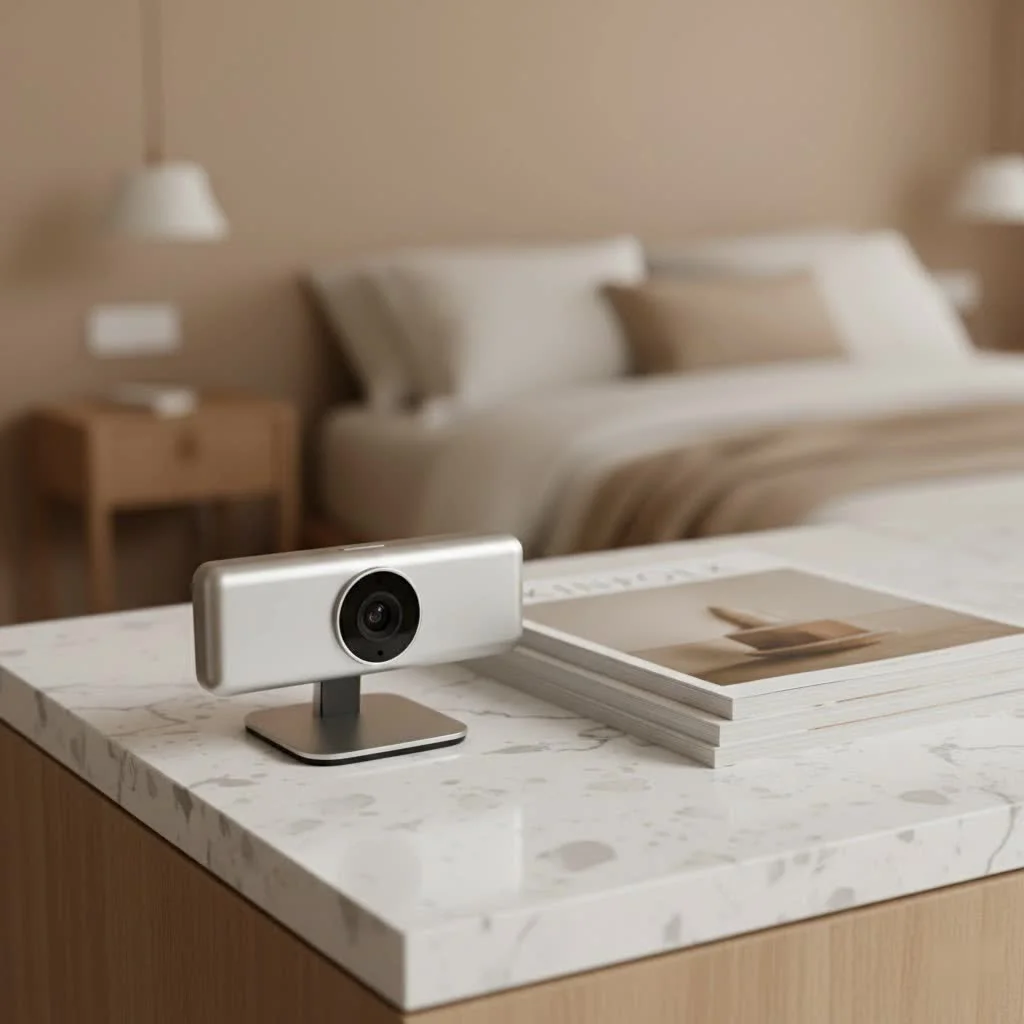
The Evolution of Microsoft Webcams: From LifeCam to Modern Innovations
Microsoft’s foray into webcams began in 2006 with the LifeCam series, a lineup that brought accessibility and quality to PC users. This early commitment laid the groundwork for many of the features we now consider standard.
A Look Back: The Microsoft LifeCam Legacy
The early Microsoft LifeCam models, including the VX and NX series, quickly gained traction for their integration with Windows Live Messenger, even featuring a dedicated “Windows Live Call” button for easy video initiation. These webcams often sported a distinctive round body design with a “Universal Attachment Base” for desktop monitors.
As technology advanced, so did the LifeCam series. Models like the LifeCam Cinema and LifeCam Studio introduced higher resolutions and advanced features. The LifeCam Cinema, for instance, delivered 720p HD widescreen video with autofocus and a 360-degree swivel, offering users flexibility in capturing their surroundings. A key innovation across many of these models was Microsoft’s TrueColor Technology. This intelligent system automatically adjusted picture quality to deliver optimal brightness and color, even in challenging lighting conditions, by analyzing the environment and using face detection to refine the image. The LifeCam Studio pushed boundaries further, offering 1080p HD video and a wide-angle glass lens, signaling Microsoft’s ambition in the high-definition webcam market. Even budget-friendly options like the LifeCam HD-3000 provided a noticeable upgrade over integrated laptop cameras for many users.
The Modern Era: Introducing the Microsoft Modern Webcam
After a period of quiet, Microsoft re-entered the standalone webcam market with the launch of the Microsoft Modern Webcam. This device signals a clear shift in focus, designed primarily to meet the demands of contemporary video conferencing and remote work. It’s built to seamlessly integrate with Microsoft’s ecosystem, particularly Microsoft Teams, providing a reliable and high-quality video solution for professionals and everyday users alike. This new iteration embodies a commitment to enhancing virtual interactions, making you look your best in every call.
Unpacking the Microsoft Modern Webcam: Features That Matter
The Microsoft Modern Webcam is a shows thoughtful design and functional innovation, aiming to simplify your online interactions while maximizing visual quality.
Crystal-Clear Visuals: 1080p HD and HDR
|
Our Picks for the Best Webcam in 2026
As an Amazon Associate I earn from qualifying purchases.
|
||
| Num | Product | Action |
|---|---|---|
| 1 | TRAUSI 1080P Webcam with Privacy Cover, Wide-Angle Lens, Noise Cancellation, Plug and Play USB Webcam for Laptop/PC/Desktop |

|
| 2 | EMEET C960 4K Webcam for PC, 4K UHD Sony Sensor, PDAF Auto Focus, Dual AI Noise-Cancelling Mics, Auto Light Correction, 73° FOV, Plug&Play Webcam w/Privacy Cover, Works w/Zoom/Teams/Skype/Google Meet |
|
| 3 | Logitech Brio 101 Full HD 1080p Webcam for Meetings, Streaming, Desktop, Laptop, PC - Built-in Mic, Shutter, Works with Zoom, Microsoft Teams, Nintendo Switch 2’s New GameChat Mode, USB-A,-Black |
|
| 4 | Lenovo HD 1080p Webcam (300 FHD)- Black w/ 95° Wide Angle, 360° Rotation Pan & Tilt, Dual Microphones, Privacy Shutter |
|
| 5 | NIVEOLI Webcam 1080P with Microphone & Privacy Cover for PC/Laptop, USB Computer Camera Plug & Play with Auto Light Correction for Video Calls, Live Streaming Gaming & Online Meetings |
|
| 6 | 1080P Full HD Webcam with Noise-Canceling Mic, Auto Light Correction, Privacy Cover and Wide Angle Lens, Plug & Play USB Camera for Laptop/Desktop/PC/Mac, Compatible with Zoom/Skype/Teams/Streaming |
|
| 7 | Kemeiv 1080P Webcam Microphone and Physical Privacy Cover Computer Webcam, Noise-canceling Microphone, Automatic Light Compensation, Ultra-Wide-Angle Lens for Meetings/Courses/Streaming/Zoom/YouTube |
|
| 8 | EMEET 1080P Webcam with Microphone, C960 Web Cam, 2 Mics, 90° FOV, USB Type-A & A-to-C Adapter, Plug&Play Computer Camera for Online Calling, Zoom/Teams/Facetime, Switch 2 Camera Support, 2025 Version |
|
| 9 | AOC 4k Webcam for PC with Microphone, Computer Camera with Noise Cancellation, Privacy Cover, 99° FOV, Plug & Play USB Webcam for Streaming, Conferencing, Zoom, Skype, Facetime, Laptop, PC, Skype |
|
| 10 | Gohero Full HD 1080P Video Webcam, Noise Cancellation, Privacy Cover, Wide-Angle Lens, Auto Light Correction, Plug & Play USB Webcam for Laptop, Desktop, PC, Mac, Zoom, Skype Pro Series |
|
When it comes to video quality, the Microsoft Modern Webcam delivers a solid 1080p HD resolution at 30 frames per second. This resolution is more than sufficient for most video conferencing applications, providing clear and crisp visuals that make a real difference in how you’re perceived. But what truly sets this webcam apart is its integration of High Dynamic Range (HDR) capabilities. HDR technology helps maintain detail in both the brightest and darkest parts of an image simultaneously, preventing blown-out highlights or murky shadows, especially in tricky lighting scenarios.
“The Microsoft Modern Webcam truly shines in its ability to adapt to varying light,” notes Alex Thompson, a lead imaging engineer at Mundv.com. “Its HDR and True Look features work in concert to ensure you’re always presented in the best possible light, which is crucial for professional calls.”
Complementing HDR is Microsoft’s “True Look” technology, which includes facial retouch and automatic light adjustment. This intelligent processing helps smooth out imperfections and balances exposure, ensuring your face is always well-lit and vibrant, even if you have a bright window behind you. The webcam also features automatic exposure and white balance, constantly adjusting to your environment for natural-looking colors. With a 78-degree field of view, it strikes a good balance, capturing enough of your personal space without making you feel too zoomed in or too far away. In my own testing, the webcam produced clear, rich colors and strong detail in well-lit conditions, surpassing many competitors in its price range. Even in low light, while some noise might be present, the camera intelligently maintains frame rates and color accuracy, avoiding the washed-out look often seen in lesser webcams.
The Audio Story: Understanding the Built-in Microphone
While the Microsoft Modern Webcam excels in visual performance, its integrated microphone often receives mixed reviews. Many users, myself included, have found that while the audio can be crisp and clear, it is often prone to echo. Interestingly, Microsoft itself acknowledges this, shipping the webcam with the microphone disabled by default, suggesting that it doesn’t quite meet their stringent Microsoft Teams certification standards for audio quality.
This isn’t necessarily a deal-breaker, especially if you prioritize video. For optimal audio quality, especially in professional settings or for content creation, I always recommend investing in a dedicated external microphone or a high-quality headset. These specialized audio devices are designed to capture your voice with superior clarity, reduce background noise, and provide a richer sound profile than most integrated webcam microphones can achieve. Think of the webcam’s microphone as a convenient backup, but not your primary audio solution.
Design, Mount, and Privacy Features
The Microsoft Modern Webcam boasts a compact and sleek design, making it an excellent companion for both desktop setups and on-the-go laptop users. Its small footprint and lightweight build ensure portability without sacrificing functionality. One of its most practical features is the integrated privacy shutter, which uses satisfying magnets to snap open and shut. Beyond physically covering the lens, closing the shutter also cuts the camera feed, offering an extra layer of security and peace of mind when the webcam is not in use.
The mounting system is designed for versatility, allowing it to securely clip onto most monitors and laptop screens. It also includes a standard tripod screw on the bottom, offering alternative mounting options for those who prefer a dedicated stand. the webcam’s articulation is somewhat limited; it offers vertical tilt but lacks the ability to swivel or rotate horizontally. While its mount generally performs well on flat-backed monitors, some users have reported minor stability issues on curved or uneven surfaces.
Software & Compatibility: Plug-and-Play Experience
Ease of use is a hallmark of the Microsoft Modern Webcam. It’s largely a plug-and-play device, meaning it works right out of the box with most Windows operating systems without requiring extensive driver installations. For those who want more control, the downloadable Microsoft Accessory Center App provides light configuration options. Through this software, you can enable HDR recording (a feature not commonly found in this price range), adjust brightness and contrast sliders, and even experiment with a “retouch” mode designed to enhance your appearance. You can also manually control auto white balance and anti-flicker settings.
The webcam is certified for Microsoft Teams, ensuring seamless integration and optimal performance within Microsoft’s popular conferencing platform. However, it’s important to know that despite being a Microsoft product, the Modern Webcam does not feature an IR sensor and therefore does not support Windows Hello facial recognition. This is a deliberate design choice, positioning it as a dedicated video conferencing tool rather than a biometric security device.
Optimizing Your Microsoft Webcam Experience: Pro Tips from a Veteran
Even the best hardware can benefit from a few expert tweaks. Here’s how you can get the absolute most out of your Microsoft webcam.
Lighting is Key
No matter how good your webcam, good lighting is paramount. Position yourself facing a window or use a soft, diffused light source in front of you. Avoid strong backlighting, as this can silhouette you and make your face appear dark, even with True Look and HDR. If you have light coming from the side, balance it with another soft light on the opposite side to eliminate harsh shadows. A simple ring light can make a world of difference.
External Audio for Superior Sound
As discussed, the built-in microphone on the Microsoft Modern Webcam is decent for casual calls but won’t deliver professional-grade audio. If your voice needs to be as clear as your video, invest in an external USB microphone or a quality headset. This upgrade will dramatically reduce echo and background noise, ensuring you’re heard crisply and clearly.
Leverage Software Settings
Don’t just plug and play. Take a few minutes to explore the Microsoft Accessory Center App. Experiment with HDR, adjust brightness and contrast to suit your environment, and see if the “retouch” mode works for your personal preference. These minor adjustments can significantly enhance your video quality. For Mac users, third-party webcam settings apps can offer similar control.
Mounting for Stability
Ensure your webcam is securely mounted. If attaching to a monitor, make sure it’s snug and stable. For those with bumpy monitors or who need more precise positioning, utilizing the tripod screw mount with a small desk tripod can provide rock-solid stability and more versatile angles.
Privacy Best Practices
Always be mindful of your privacy. Make it a habit to close the physical privacy shutter when your webcam is not in active use. For an extra layer of security, consider unplugging the webcam when you’re done for the day. These simple actions ensure that your camera feed remains private and protected.
Is a Microsoft Webcam Right for You? Weighing the Pros and Cons
Deciding on the right webcam involves balancing your needs with a device’s capabilities. Here’s a quick rundown to help you determine if a Microsoft webcam, particularly the Modern Webcam, is your ideal choice.
Pros:
- Excellent Video Quality for the Price: The 1080p resolution, HDR, and True Look technology combine to offer superior visuals, especially in varying lighting conditions.
- Built-in Privacy Shutter: A convenient and effective way to ensure privacy.
- Microsoft Teams Certified: Guarantees optimal performance and seamless integration with Microsoft’s primary communication platform.
- Highly Portable: Its compact design makes it easy to carry and use with laptops.
- Plug-and-Play Simplicity: Minimal setup required, making it user-friendly.
Cons:
- Weak Built-in Microphone: Often requires an external microphone for best audio quality, and is even disabled by default sometimes.
- No Windows Hello Support: Lacks facial recognition for convenient login.
- Limited Articulation: The mount offers vertical tilt but no horizontal swivel.
- Build Quality: While portable, some aspects of the build can feel less robust compared to premium competitors.
Who is it for? The Microsoft Modern Webcam is an excellent choice for budget-conscious users seeking high-quality video for video conferencing, particularly those who frequently use Microsoft Teams. It’s also ideal for individuals who already own or plan to purchase a separate external microphone, making the webcam’s audio limitations less of a concern. Its portability is a significant advantage for those who work from different locations or use it with a laptop.
Frequently Asked Questions about Microsoft Webcams
Here are some common questions I hear from users about Microsoft webcams:
Q1: Does the Microsoft Modern Webcam work with Windows Hello?
No, the Microsoft Modern Webcam does not include an IR sensor and therefore does not support Windows Hello facial recognition for logging into your PC. It is primarily designed for video communication.
Q2: What is “True Look” technology?
True Look is a suite of features in the Microsoft Modern Webcam that includes automatic facial retouching and auto light adjustment. It aims to optimize your appearance on camera by smoothing features and ensuring consistent, flattering lighting, even in challenging environments.
Q3: How do I improve the audio quality of my Microsoft webcam?
The most effective way to improve audio quality is to use an external USB microphone or a dedicated headset. While the built-in mic can be functional, a separate audio device will offer superior clarity, noise reduction, and overall sound fidelity.
Q4: Are older LifeCam models still good?
Some older LifeCam models, particularly the LifeCam Studio or Cinema, can still be functional for basic video calls if you already own them. However, they may lack the advanced imaging processing, resolution, and modern software integration of newer webcams. For the best current performance, the Microsoft Modern Webcam is a more updated choice.
Q5: Is the Microsoft Modern Webcam good for streaming?
For casual streaming, the Microsoft Modern Webcam’s 1080p video quality with HDR is certainly capable. However, serious streamers often prefer webcams with higher frame rates (e.g., 1080p @ 60fps), wider fields of view, or more advanced manual controls, along with a dedicated external microphone. It’s a solid entry-level option, but not a pro-grade streaming camera.
improve your Virtual Presence with Microsoft Webcams
In an era where digital interactions are foundational, a high-performing webcam is more than just a peripheral – it’s an investment in your personal and professional image. Microsoft’s journey in the webcam landscape, culminating in the highly capable Microsoft Modern Webcam, showcases their dedication to providing clear, reliable, and user-friendly solutions. While the brand has a rich history with its LifeCam series, the Modern Webcam is clearly optimized for today’s hybrid work and communication demands.
From its crystal-clear 1080p video with HDR and True Look technology to its convenient privacy shutter, the Microsoft Modern Webcam empowers you to present your best self in every virtual meeting, family chat, or online presentation. to optimize your lighting, consider an external microphone, and utilize the software settings to fine-tune your experience. By understanding its strengths and making a few strategic adjustments, your Microsoft webcam will become an indispensable tool for seamless, high-quality digital connection. It’s time to step into your next video call with confidence, knowing your setup truly reflects your professional approach.
Get our weekly buyer guide
Practical specs, not advice. Unsubscribe anytime.

I’ve been using the Microsoft Modern Webcam for a few months now for my remote work setup, and it’s been a solid performer. The 1080p HD video is definitely clear, and I’ve noticed the True Look technology really helps when my office lighting isn’t perfect. It integrates super smoothly with Teams, which is a huge plus for my daily meetings. I do agree about the microphone though; I always use my headset to avoid any echo issues.
This webcam is a game-changer for my online teaching. The High Dynamic Range really makes a difference in how professional I look, even with varying light throughout the day. It was super easy to set up and works flawlessly with all my platforms. Definitely recommend it if you need reliable, high-quality video.
I picked up a Microsoft Modern Webcam after reading about its HDR capabilities, hoping it would solve my backlighting problems. While the picture quality is decent and the colors are good, I’m a bit disappointed with the frame rate. Sometimes it feels a little less smooth than I’d like, especially during fast movements. It’s not terrible, but I was expecting a bit more for the price point.
As someone who remembers the old LifeCam models, the Modern Webcam is a huge leap forward. The clarity and connection are fantastic for all my video calls. I appreciate the focus on contemporary video conferencing, and it truly delivers on that front. No more blurry, pixelated calls for me!