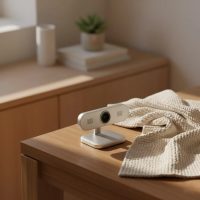
In today’s interconnected world, a reliable webcam is no longer just a luxury; it’s an essential tool for communication, creation, and collaboration. Whether you’re a student attending virtual classes, a professional leading remote meetings, a content creator engaging with your audience, or simply staying in touch with loved ones, a quality webcam makes all the difference. Among the myriad options available, the Nexigo webcam series has carved out a significant niche, offering a diverse range of devices designed to meet various needs and budgets. As a leading voice at Mundv.com, with over 15 years in the field of imaging technology, I’m here to guide you through the ins and outs of choosing, setting up, and optimizing your Nexigo webcam for an unparalleled visual and auditory experience.
What Makes Nexigo Webcams Stand Out?
Nexigo has built a reputation for delivering webcams that often punch above their weight, balancing affordability with robust features. Their lineup spans from basic 1080p models perfect for everyday video calls to advanced 4K cameras packed with AI capabilities for professional streaming. A significant advantage is their commitment to a “plug-and-play” experience, meaning many Nexigo webcams work right out of the box with standard drivers provided by your operating system, simplifying the initial setup.
Key features you’ll often find across the Nexigo webcam range include:
- Diverse Resolutions and Frame Rates: From crisp 1080p at 30fps (frames per second) for standard use to ultra-sharp 4K at 30fps and smooth 1080p at 60fps for demanding applications like streaming or gaming.
- Privacy Features: Many models come with a built-in or stick-on privacy cover, offering peace of mind when the camera is not in use. Some advanced models even boast automatic privacy shutters.
- Integrated Microphones: Most Nexigo webcams include built-in omnidirectional microphones, with some featuring dual noise-canceling mics for clearer audio.
- Flexible Focus Options: You’ll find both fixed-focus lenses for consistent clarity at a set distance and autofocus capabilities for sharp images even when you move.
- Dedicated Software: While often plug-and-play, Nexigo also offers a Webcam Settings application for fine-tuning various image parameters like brightness, contrast, saturation, and hue, allowing you to achieve your desired look.
Finding Your Perfect Nexigo Webcam: Models for Every Need
With a variety of models, choosing the best Nexigo webcam depends largely on your specific use case and budget.
For Everyday Use and Budget-Conscious Users
If you need a reliable, no-fuss camera for daily video calls, online learning, or remote work without breaking the bank, models like the Nexigo N60 or Nexigo N660P are excellent starting points.
- Nexigo N60: This inexpensive wired webcam records 1080p video at 30fps. When lighting is optimal, it produces sharp images and smooth video. It also comes with intuitive companion software and a lens cover. However, users might find its low-light performance and built-in mic quality to be subpar, and some report a noticeable fisheye effect.
- Nexigo N660P: Often praised for its excellent picture quality, comparable to cameras twice its price, the N660P also offers good microphone performance with clear voices and an easy plug-and-play setup.
For Enhanced Security and Convenience
|
Our Picks for the Best Webcam in 2026
As an Amazon Associate I earn from qualifying purchases.
|
||
| Num | Product | Action |
|---|---|---|
| 1 | Logitech Brio 101 Full HD 1080p Webcam for Meetings, Streaming, Desktop, Laptop, PC - Built-in Mic, Shutter, Works with Zoom, Microsoft Teams, Nintendo Switch 2’s New GameChat Mode, USB-A,-Black |

|
| 2 | Kemeiv 1080P Webcam Microphone and Physical Privacy Cover Computer Webcam, Noise-canceling Microphone, Automatic Light Compensation, Ultra-Wide-Angle Lens for Meetings/Courses/Streaming/Zoom/YouTube |
|
| 3 | AOC 4k Webcam for PC with Microphone, Computer Camera with Noise Cancellation, Privacy Cover, 99° FOV, Plug & Play USB Webcam for Streaming, Conferencing, Zoom, Skype, Facetime, Laptop, PC, Skype |
|
| 4 | Gohero Full HD 1080P Video Webcam, Noise Cancellation, Privacy Cover, Wide-Angle Lens, Auto Light Correction, Plug & Play USB Webcam for Laptop, Desktop, PC, Mac, Zoom, Skype Pro Series |
|
| 5 | EMEET 1080P Webcam with Microphone, C960 Web Cam, 2 Mics, 90° FOV, USB Type-A & A-to-C Adapter, Plug&Play Computer Camera for Online Calling, Zoom/Teams/Facetime, Switch 2 Camera Support, 2025 Version |
|
| 6 | EMEET C960 4K Webcam for PC, 4K UHD Sony Sensor, PDAF Auto Focus, Dual AI Noise-Cancelling Mics, Auto Light Correction, 73° FOV, Plug&Play Webcam w/Privacy Cover, Works w/Zoom/Teams/Skype/Google Meet |
|
| 7 | 1080P Full HD Webcam with Noise-Canceling Mic, Auto Light Correction, Privacy Cover and Wide Angle Lens, Plug & Play USB Camera for Laptop/Desktop/PC/Mac, Compatible with Zoom/Skype/Teams/Streaming |
|
| 8 | Lenovo HD 1080p Webcam (300 FHD)- Black w/ 95° Wide Angle, 360° Rotation Pan & Tilt, Dual Microphones, Privacy Shutter |
|
| 9 | NIVEOLI Webcam 1080P with Microphone & Privacy Cover for PC/Laptop, USB Computer Camera Plug & Play with Auto Light Correction for Video Calls, Live Streaming Gaming & Online Meetings |
|
| 10 | TRAUSI 1080P Webcam with Privacy Cover, Wide-Angle Lens, Noise Cancellation, Plug and Play USB Webcam for Laptop/PC/Desktop |
|
For those who prioritize integrated security features and streamlined login processes, the Nexigo Hellocam series offers a compelling solution.
- Nexigo Hellocam: This budget-friendly option, typically in the $55-$75 range, delivers decent Full HD 1080p video quality with facial enhancement. Its standout feature is the easy-to-use Windows Hello function for secure, fast logins, coupled with an automatic privacy shutter for added security. While its image quality is generally good, similar to other budget models, the audio quality might not be its strongest suit. The Hellocam Pro version adds 60Hz frame rates and other minor enhancements.
For High-Quality Streaming and Content Creation
Content creators, live streamers, and professionals seeking studio-grade visuals will appreciate Nexigo’s higher-end offerings.
- Nexigo N950P: This 4K webcam is Zoom certified and provides 3840×2160 resolution at 30fps, a 90-degree field of view, automatic low-light correction, and dual noise-canceling microphones. It includes a remote control for easy adjustments and an 8.5-megapixel Sony Starvis sensor known for good low-light performance.
- Nexigo N960E: Ideal for budget-friendly streaming, this model offers 1080p resolution with fast autofocus and a smooth 60fps framerate. It features a built-in ring light with three color temperatures and adjustable brightness, dual noise-canceling mics, and support for the Nexigo Webcam Settings App.
- Nexigo Iris: Positioned as the ultimate choice for professional streaming, the Iris 4K Webcam boasts studio-grade visuals, premium build quality, and cutting-edge AI features, making it suitable for serious content creators and broadcasters.
- Nexigo N940P: If you’re looking for sharper video than 1080p without jumping to 4K, the N940P delivers crisp 2K visuals and smart remote control functions, making it a powerful option.
Setting Up Your Nexigo Webcam: A Seamless Experience
One of the great advantages of a Nexigo webcam is its user-friendly setup. Most models are designed for plug-and-play functionality, getting you started in minutes.
Plug-and-Play Simplicity
To get your Nexigo webcam working, simply plug its USB cable into an available USB 2.0 or USB 3.0 port on your computer. Your operating system (Windows, macOS, Chrome OS, Linux, Android, or even Xbox) should automatically recognize and install the necessary standard drivers.
Mounting Options
Nexigo webcams are versatile in how they can be positioned:
- Laptop or Monitor: Most models come with a flexible clip base that securely attaches to the top of your screen. You can adjust the webcam’s gimbal base to achieve your desired field of view.
- Tripod: Many Nexigo webcams also feature a 1/4-inch threaded screw hole on the bottom of the clip, allowing you to mount them onto a tripod for more flexible positioning and stable shots.
Initial Software Configuration
Once connected, you can view your camera feed using your computer’s pre-installed applications:
- Windows: Use the “Camera” app. Type “camera” in the search bar or find it in your Start menu. You might need to select “the NexiGo camera” from a list of devices.
- Mac: Use the “Photo Booth” app. Open it from Applications or search for it. In the app menu, click “Camera” and select your Nexigo webcam.
Granting Permissions
If you encounter issues, ensure your operating system grants camera access to applications:
- Windows: Go to Settings > Privacy > Camera and turn on “Allow apps to access your camera,” then enable access for specific applications like Zoom, Skype, or Teams.
- Mac: Go to Apple menu > System Preferences > Security & Privacy > Privacy > Camera, and select the apps you want to use with your webcam.
Optimizing Your Nexigo Webcam for Peak Performance
While Nexigo webcams are designed to work well with default settings, a few adjustments can significantly enhance your video quality and overall experience.
Fine-Tuning with Nexigo Software
The Nexigo Webcam Settings application (available for download from the Nexigo website) is your command center for image customization. Here, you can tweak:
- Brightness, Contrast, Saturation, Hue: Adjust these to match your lighting conditions and personal preference for a vibrant, natural look.
- Powerline Frequency: If you notice flickering in your video, especially under artificial lighting, switch between 50 Hz and 60 Hz to match your region’s power supply frequency.
- Zoom, Pan, and Tilt: For models that support these features, the software allows you to precisely frame your shot.
Resolution and Frame Rate
Higher resolutions and frame rates demand more from your computer and internet connection. If you experience lagging or choppiness:
- Adjust Resolution: Try lowering the resolution from 1080p to 720p. You’ll lose a bit of sharpness, but the video will likely run much smoother, especially with limited bandwidth.
- Stick to 30fps: While 60fps offers ultra-smooth video, many systems and internet connections can struggle to maintain it without stuttering. For most video calls, 30fps is perfectly adequate.
- Video Format: In some applications, choosing “MJPEG” as the video format can reduce system load and prevent glitches.
Audio Best Practices
The built-in microphones on Nexigo webcam models offer convenience, but their quality can vary.
- External Microphone: For the best audio experience, especially for streaming or professional recordings, consider investing in a dedicated external microphone.
- Verify Selection: Always ensure your desired microphone (whether built-in or external) is selected as the audio input device in your operating system’s sound settings and within your video conferencing application.
- Adjust Input Volume: Monitor and adjust your microphone’s input volume to prevent clipping or muffled sound.
Lighting is Key
No matter how good your webcam is, good lighting makes a tremendous difference. Position yourself to have soft, even lighting on your face, ideally from in front of you. Avoid strong backlighting, which can make you appear as a silhouette.
Troubleshooting Common Nexigo Webcam Issues
Even the best technology can sometimes encounter hiccups. Here are solutions to common Nexigo webcam problems:
Webcam Not Detected or Black Screen
- Check USB Port: Ensure the webcam is plugged directly into a computer USB port, not a USB hub, adapter, or dock, as these can sometimes lack sufficient power. Try different USB ports, especially those on the back of your desktop computer.
- Unplug and Replug: A simple unplug-wait-10-seconds-and-replug often resolves minor connectivity issues.
- Update Drivers/OS: Although Nexigo webcams are largely plug-and-play, an outdated operating system or corrupted driver can cause issues. Check for OS updates and, in Windows Device Manager (under Cameras or Imaging Devices), right-click your webcam and select “Update driver.”
- Camera Permissions: Double-check that your operating system and specific applications have permission to access your camera (as detailed in the setup section).
- Close Conflicting Apps: Other applications (like OBS, Skype, Zoom, or virtual camera software) might be hogging the camera. Close any apps that might be using your webcam before launching your desired application.
Lagging or Choppy Video
- Adjust Settings: As mentioned above, lowering the resolution to 720p and ensuring the frame rate is set to 30fps can significantly reduce lag.
- Check Internet Speed: Slow upload speeds are a common culprit for lagging video, especially during live streaming or video calls. Run a speed test (aim for 3-5 Mbps upload or higher) and consider restarting your router, reducing connected devices, or upgrading your internet plan.
- System Specifications: Ensure your computer meets the minimum requirements for your webcam’s resolution and frame rate. Older or less powerful systems might struggle with 4K or 60fps streams.
Poor Audio Quality
- Verify Microphone Selection: Confirm that “NexiGo Microphone” (or your preferred external mic) is selected as the input device in your sound settings and within your communication software.
- Adjust Input Volume: Use the sound settings in your OS or the Nexigo Webcam Settings application to adjust the microphone’s input level.
- External Mic: For consistently high-quality audio, an external USB microphone is often the best upgrade.
- Powerline Frequency: If you experience buzzing or humming, adjusting the “Powerline Freq” setting in the Nexigo application (switching between 50 Hz and 60 Hz) can sometimes help.
Expert Insights for Your Nexigo Webcam Journey
“In my experience, the true power of a Nexigo webcam lies in its accessibility paired with customization,” says Alex Chen, our senior webcam expert at Mundv.com. “While many appreciate the plug-and-play simplicity, taking the time to understand its settings and making minor tweaks can transform your video presence from good to truly outstanding. And always remember, great video starts with great lighting!”
FAQs About Nexigo Webcams
Q: Are Nexigo webcams truly plug-and-play?
A: Yes, most Nexigo webcams are designed to be plug-and-play, meaning they work with standard drivers from Windows or macOS without requiring additional software to get basic functionality.
Q: Do I need special drivers for my Nexigo webcam?
A: Generally, no. Nexigo webcams use standard drivers. However, Nexigo offers an optional “Webcam Settings Application” that allows for advanced customization of image and video settings.
Q: How do I improve the microphone quality of my Nexigo webcam?
A: While many Nexigo webcams have built-in microphones, for optimal audio quality, especially for streaming or professional calls, an external USB microphone is recommended. You can also adjust the input volume and check noise-canceling settings in your computer or the Nexigo software.
Q: My Nexigo webcam is lagging. What should I do?
A: Common solutions include adjusting the webcam’s resolution to 720p and frame rate to 30fps, checking your internet upload speed, ensuring your computer’s specifications are sufficient, closing other demanding applications, and making sure the webcam is plugged directly into a high-speed USB port.
Q: Can I use a Nexigo webcam for professional streaming?
A: Absolutely! Nexigo offers several high-end models, such as the N950P, N960E, and the Iris, that provide 4K resolution, 60fps, advanced features like ring lights, and AI capabilities, making them excellent choices for professional streamers and content creators.
Q: Where can I download the Nexigo Webcam Settings application?
A: The Nexigo Webcam Settings application can be downloaded directly from the official Nexigo website, usually in the support or downloads section for your specific webcam model.
Unlock Your Visual Potential with Nexigo
Choosing a Nexigo webcam means investing in a device that balances performance, ease of use, and value. From casual chats to high-stakes presentations and engaging streams, there’s a Nexigo model tailored for your journey. By understanding its features, optimizing its settings, and knowing how to troubleshoot common issues, you’re not just buying a webcam; you’re unlocking a clearer, more confident visual presence in your digital world. Take control of your video experience and let your Nexigo webcam illuminate your best self.
Get our weekly buyer guide
Practical specs, not advice. Unsubscribe anytime.