The Logitech C922 Pro HD Stream Webcam is an excellent choice for streamers and content creators, offering 1080p video at 30 frames per second (fps) for crisp details and a hyperfast 720p at 60fps for smooth, dynamic overlays during gameplay. It includes features like HD autofocus, automatic light correction, dual omni-directional stereo microphones, and a compact tabletop tripod, making it a versatile and reliable tool for enhancing online presence and video quality.
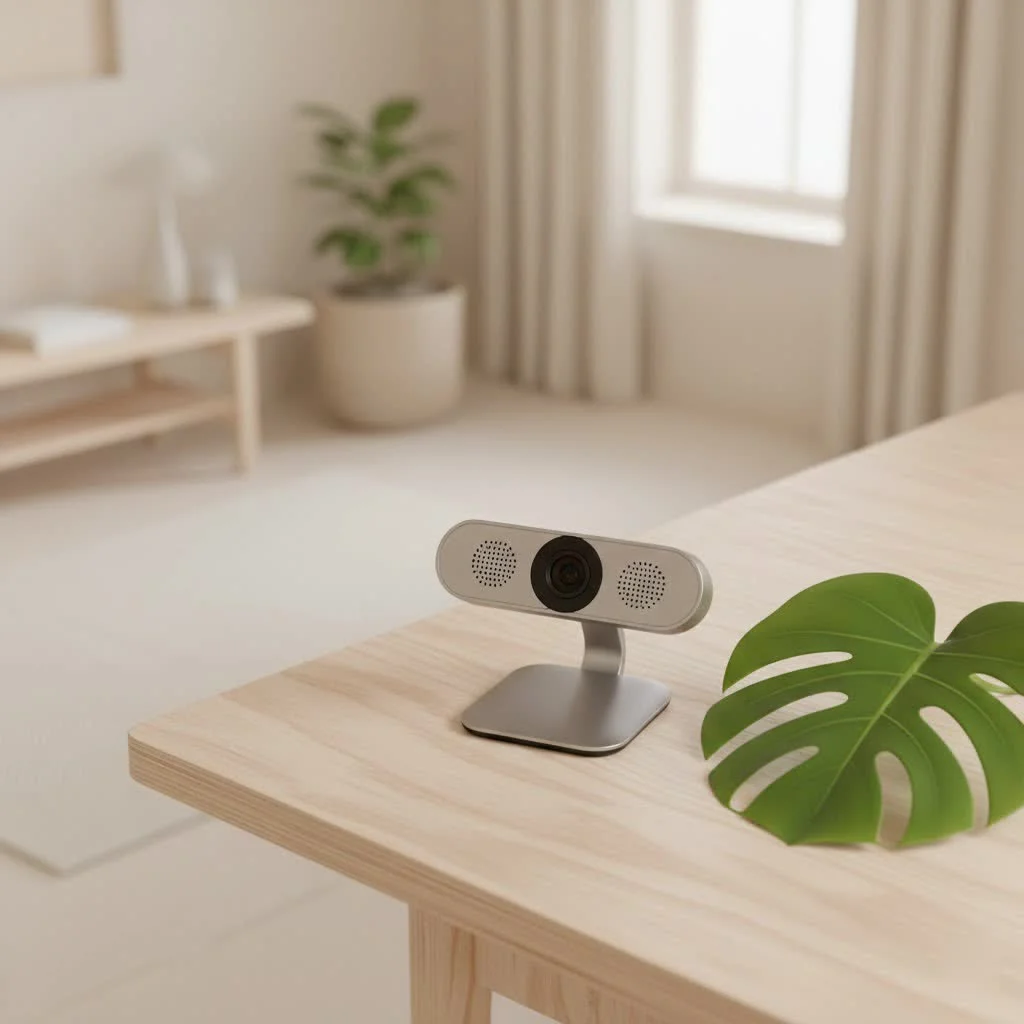
This isn’t just another camera; it’s a meticulously engineered tool designed to meet the rigorous demands of live broadcasting and high-quality recording. From its crisp video output to its clever features, the Logitech C922 aims to put you in the best light, quite literally. So, let’s break down what makes this webcam a powerhouse and how you can truly master it. For expert webcam reviews reviews on this site.
Why the Logitech C922 Stands Out
The Logitech C922 Pro HD Stream Webcam isn’t merely a minor upgrade from its predecessors; it’s built with the modern digital creator in mind, offering a blend of performance and practical features that cater specifically to streaming and high-definition video capture.
Crystal Clear Video for Every Scenario
One of the most compelling reasons to choose the Logitech C922 is its outstanding video quality, adaptable for various content needs.
Full HD 1080p at 30fps for Crisp Details
For general streaming, video calls, or recording talking-head videos, the C922 delivers full 1080p high-definition video at 30 frames per second (fps). This resolution ensures that your audience sees you with exceptional clarity and detail, making your presentations and interactions look professional and polished. Whether you’re hosting a webinar or just catching up with family, the visual fidelity is impressive.
Hyperfast 720p at 60fps for Dynamic Overlays
This is where the Logitech C922 truly shines for gamers and dynamic content creators. The ability to stream in 720p at a super-smooth 60 frames per second is a major upgrade for facecam overlays during gameplay. That higher frame rate means your movements on screen are fluid and natural, perfectly complementing fast-paced game action without any jarring choppiness. Many streamers swear by this feature, as it keeps their on-screen persona vibrant and engaging.
HD Autofocus & Auto Light Correction
The C922 comes equipped with HD autofocus, ensuring that you remain sharp and clear even if you move around your frame. No more blurry moments when you lean in to emphasize a point! Alongside this, its automatic low-light correction endeavors to optimize your exposure, adapting to various lighting conditions in your environment. While it does a commendable job, especially in moderately lit rooms, relying solely on auto-correction in very dim settings might yield results that some find a little artificial or less vibrant compared to a dedicated lighting setup. As I always say, good lighting is the best friend of any camera!
Superior Sound Quality for Clear Communication
|
Our Picks for the Best Webcam in 2026
As an Amazon Associate I earn from qualifying purchases.
|
||
| Num | Product | Action |
|---|---|---|
| 1 | Logitech Brio 101 Full HD 1080p Webcam for Meetings, Streaming, Desktop, Laptop, PC - Built-in Mic, Shutter, Works with Zoom, Microsoft Teams, Nintendo Switch 2’s New GameChat Mode, USB-A,-Black |

|
| 2 | EMEET C960 4K Webcam for PC, 4K UHD Sony Sensor, PDAF Auto Focus, Dual AI Noise-Cancelling Mics, Auto Light Correction, 73° FOV, Plug&Play Webcam w/Privacy Cover, Works w/Zoom/Teams/Skype/Google Meet |
|
| 3 | EMEET 1080P Webcam with Microphone, C960 Web Cam, 2 Mics, 90° FOV, USB Type-A & A-to-C Adapter, Plug&Play Computer Camera for Online Calling, Zoom/Teams/Facetime, Switch 2 Camera Support, 2025 Version |
|
| 4 | Lenovo HD 1080p Webcam (300 FHD)- Black w/ 95° Wide Angle, 360° Rotation Pan & Tilt, Dual Microphones, Privacy Shutter |
|
| 5 | Kemeiv 1080P Webcam Microphone and Physical Privacy Cover Computer Webcam, Noise-canceling Microphone, Automatic Light Compensation, Ultra-Wide-Angle Lens for Meetings/Courses/Streaming/Zoom/YouTube |
|
| 6 | Gohero Full HD 1080P Video Webcam, Noise Cancellation, Privacy Cover, Wide-Angle Lens, Auto Light Correction, Plug & Play USB Webcam for Laptop, Desktop, PC, Mac, Zoom, Skype Pro Series |
|
| 7 | AOC 4k Webcam for PC with Microphone, Computer Camera with Noise Cancellation, Privacy Cover, 99° FOV, Plug & Play USB Webcam for Streaming, Conferencing, Zoom, Skype, Facetime, Laptop, PC, Skype |
|
| 8 | 1080P Full HD Webcam with Noise-Canceling Mic, Auto Light Correction, Privacy Cover and Wide Angle Lens, Plug & Play USB Camera for Laptop/Desktop/PC/Mac, Compatible with Zoom/Skype/Teams/Streaming |
|
| 9 | NIVEOLI Webcam 1080P with Microphone & Privacy Cover for PC/Laptop, USB Computer Camera Plug & Play with Auto Light Correction for Video Calls, Live Streaming Gaming & Online Meetings |
|
| 10 | TRAUSI 1080P Webcam with Privacy Cover, Wide-Angle Lens, Noise Cancellation, Plug and Play USB Webcam for Laptop/PC/Desktop |
|
Beyond its visual prowess, the Logitech C922 integrates dual omni-directional stereo microphones. These mics are positioned on either side of the camera, working together to capture your voice with surprising clarity. For casual streaming, video conferencing, or quick recordings, the audio quality is more than adequate, ensuring you’re heard clearly without needing an external mic right away. However, for serious content creators and professional broadcasters, a dedicated microphone will always offer superior control and fidelity, isolating your voice from background noise more effectively. Think of the C922’s built-in mics as a great starting point, but a dedicated mic as the ultimate upgrade for pristine sound.
Designed for Streamers, Beyond the Basics
Logitech clearly had streamers and content creators in mind when crafting the Logitech C922, including features that demonstrate a deep understanding of their workflow.
Integrated Tripod: A major upgrade
One unique advantage of the C922, and a feature often highlighted in reviews, is the inclusion of a compact tabletop tripod. This isn’t just a throw-in; it’s a practical accessory that provides flexible placement options beyond just clipping it to your monitor. Being able to position your webcam exactly where you need it, whether slightly off-angle or at eye level on a lower desk, can significantly improve your framing and overall shot composition. As someone who has wrestled with ill-fitting webcams and unstable setups, a purpose-built tripod is a definite bonus and often overlooked value.
78-Degree Field of View: Perfect for Individual or Duo Streams
With a 78-degree diagonal field of view (dFoV), the C922 strikes a sweet spot. It’s wide enough to comfortably capture a single person with a bit of background, or even two people if they’re seated closely, without distorting the edges too much. This makes it versatile for solo streams, collaborative broadcasts, or even small group video calls, providing a natural perspective that keeps your audience engaged.
Seamless Integration with Your Favorite Platforms
The Logitech C922 is designed for maximum compatibility, making it incredibly easy to integrate into your existing setup.
OBS, XSplit, Twitch, YouTube, Zoom, Skype
This webcam is truly plug-and-play with most major operating systems and applications. Whether you’re using industry-standard streaming software like OBS Studio or XSplit Broadcaster, or popular communication platforms such as Twitch, YouTube Live, Zoom, Skype, or Microsoft Teams, the C922 connects effortlessly via its USB-A cable. You generally won’t need to hunt for complicated drivers; simply plug it in, select it as your video device, and you’re good to go.
Logitech Capture Software for Advanced Controls
For those who want to fine-tune their video beyond basic settings, Logitech offers its Capture Software. This free application allows you to adjust exposure, white balance, digital zoom, pan, and tilt, giving you greater control over your image. It’s a powerful tool for customizing your look, applying filters, or even setting up multiple camera scenes, all without needing complex third-party software.
Understanding the Background Replacement Feature
The Logitech C922 often comes with a bundled XSplit premium license and integration with ChromaCam by Personify, software designed for background removal. This feature aims to digitally “green screen” your background, allowing you to swap it out for custom images or blur it for privacy. While a neat concept, my experience and that of many users show that software-based background removal works best when you already have a physical green screen. Without one, the effect can be hit-or-miss, especially with complex hair or edges, often struggling to differentiate you perfectly from your environment. So, if a pristine background removal is crucial for your stream, consider investing in an actual green screen to go along with your C922.
Logitech C922 vs. C920: Which One is Right for You?
It’s natural to compare the Logitech C922 with its highly popular predecessor, the C920. Both are excellent webcams, but a few key differences might sway your decision.
The most significant advantage of the C922 is its ability to stream in 720p at 60 frames per second, a feature absent in the C920, which maxes out at 30fps for both 720p and 1080p. This higher frame rate is crucial for streamers who want smoother motion in their facecam overlays. The C922 typically includes a tabletop tripod and the bundled background removal software, which the C920 usually does not.
However, some users have noted that the C920’s automatic low-light correction can sometimes outperform the C922’s in certain conditions, providing a slightly more natural look in dim environments. And, as expected, the C920 often comes at a lower price point.
When to choose the C922: If smooth 60fps video for dynamic content (like gaming streams) is a priority, and you value the included tripod and software bundles.
When to choose the C920: If you’re on a tighter budget, primarily need 1080p/30fps, or mostly use your webcam for standard video calls where 60fps isn’t essential.
Both are robust choices, but the Logitech C922 is specifically geared towards the streaming community with its enhanced frame rate and bundled extras.
Setting Up Your Logitech C922 for Success
Getting your Logitech C922 Pro HD Stream Webcam up and running is remarkably straightforward, but optimizing its settings can significantly impact your output quality.
Plug and Play Simplicity
The beauty of the C922 is its inherent ease of use. Simply plug the USB-A connector into an available USB port on your computer, and most operating systems will recognize it immediately without needing manual driver installation. An LED activity light will illuminate when the webcam is actively being used by an application, giving you a clear visual cue.
Mounting Options
The C922 comes with a versatile universal mounting clip that allows you to securely place it on top of almost any computer monitor, laptop screen, or even a standalone display. The clip features an adjustable foot to ensure it sits flush with the back of your device. Alternatively, for more precise positioning, utilize the 1/4 inch tripod thread located at the bottom of the clip to attach the included tabletop tripod (or any other compatible tripod you might own). This flexibility ensures you can always achieve the ideal camera angle for your content.
Optimizing Settings in OBS/XSplit
While the C922 works out of the box, diving into the settings of your streaming software (like OBS Studio or XSplit Broadcaster) allows for advanced customization. Here’s a quick guide:
- Select Your Device: In your software, add a “Video Capture Device” and select “Logitech C922 Pro Stream Webcam.”
- Resolution & FPS: For smooth gameplay overlays, select 1280×720 (720p) and set the FPS to 60. If 1080p quality is paramount and motion isn’t as critical, stick with 1920×1080 (1080p) at 30fps.
- Camera Controls: Access the webcam’s “Configure Video” properties. Here, you’ll find options for exposure, white balance, and low-light compensation. For the best 60fps performance, it’s often recommended to turn off “Low Light Compensation” and ensure “Exposure” is checked on, allowing you to manually adjust lighting or rely on your external light sources.
- Video Format: Set the video format to MJPEG for optimal performance in most streaming applications.
Experiment with these settings in your specific environment to find the perfect balance for your desired look.
Maximizing Your C922 Experience: Pro Tips from Mundv
After years of working with various recording devices, I’ve picked up a few tricks to squeeze every bit of performance out of a webcam like the Logitech C922.
Lighting is Key (Even with Auto-Correction)
While the C922 boasts automatic light correction, nothing beats good, consistent lighting. Invest in a simple ring light or softbox. Even positioning yourself facing a window during the day can make a dramatic difference. Proper lighting reduces the webcam’s need to compensate, resulting in a cleaner, less noisy, and more vibrant image. Trust me, it’s the single biggest improvement you can make to your video quality.
Consider a Dedicated Microphone
As I mentioned, the dual stereo microphones on the Logitech C922 are solid for a webcam. However, if your content relies heavily on clear audio – podcasts, voiceovers, professional commentary – a dedicated USB microphone or an XLR setup will provide superior sound isolation and fidelity. This combo ensures your audience hears you perfectly, free from keyboard clicks or room echo.
Experiment with Logitech Capture
Don’t just plug and play! Spend some time exploring the Logitech Capture software. Its advanced controls for digital zoom, pan, tilt, and color adjustments can help you fine-tune your shot, crop out distracting elements, and even create custom profiles for different streaming scenarios. It’s a powerful, often underutilized, tool that enhances the value of your Logitech C922.
Frequently Asked Questions (FAQ)
Is the Logitech C922 good for gaming streams?
Absolutely! The Logitech C922 is explicitly designed for streamers, offering smooth 720p at 60fps which is ideal for capturing your reactions in dynamic gaming overlays.
Does the C922 come with a tripod?
Yes, most versions of the Logitech C922 Pro HD Stream Webcam include a compact tabletop tripod, offering versatile mounting options.
Can I use the C922 without a green screen for background replacement?
You can, as the C922 works with software like ChromaCam by Personify for virtual background removal. However, for the best, most seamless results, using a physical green screen is highly recommended.
What’s the difference between the Logitech C922 and C920?
The main differences are that the Logitech C922 offers 720p at 60fps (C920 is 30fps max for both), typically includes a tripod and background replacement software, while the C920 is generally more affordable.
How do I improve low-light performance on my C922?
The best way to improve low-light performance is to add external lighting. While the Logitech C922 has auto-light correction, a dedicated light source like a ring light will significantly enhance image quality and reduce noise.
Is Logitech C922 plug and play?
Yes, the Logitech C922 is designed to be plug-and-play. You simply connect it to your computer’s USB-A port, and most operating systems will recognize it automatically.
Conclusion
The Logitech C922 Pro HD Stream Webcam remains a top contender for anyone serious about streaming, content creation, or simply looking for a significant upgrade to their video conferencing setup. Its ability to deliver crisp 1080p at 30fps and fluid 720p at 60fps, coupled with intelligent autofocus, decent audio, and handy accessories like the included tripod, makes it a versatile and reliable choice. By understanding its features and applying a few expert tips, you can unlock its full potential and present your best self to the world. So go ahead, plug in your Logitech C922, hit that ‘go live’ button, and let your creativity flow!
Frequently Asked Questions
Is the Logitech C922 Pro HD Stream Webcam suitable for gaming streams?
Yes, the Logitech C922 is specifically designed for streamers and is highly suitable for gaming. It offers smooth 720p video at 60 frames per second, which is ideal for capturing dynamic reactions in gaming overlays without choppiness.
Does the Logitech C922 webcam come with an included tripod?
Yes, most versions of the Logitech C922 Pro HD Stream Webcam include a compact tabletop tripod. This accessory provides flexible mounting options, allowing users to position the webcam precisely for optimal framing.
Can the C922 perform background replacement without a physical green screen?
The C922 works with software like ChromaCam by Personify for virtual background removal, even without a physical green screen. However, for the most seamless and professional results, using an actual green screen is strongly recommended to avoid visual artifacts.
What are the key differences between the Logitech C922 and C920 models?
The main difference is that the Logitech C922 offers 720p at 60fps, while the C920 is limited to 30fps for both 720p and 1080p. Additionally, the C922 typically includes a tabletop tripod and background replacement software, which are usually not bundled with the C920, making the C920 generally more affordable.
How can I improve the low-light performance of my Logitech C922?
The most effective way to improve the C922's low-light performance is by adding external lighting. While the webcam has auto-light correction, a dedicated light source such as a ring light or softbox will significantly enhance image quality, reduce noise, and provide a more vibrant picture.
Is the Logitech C922 Pro HD Stream Webcam easy to set up?
Yes, the Logitech C922 is designed for plug-and-play simplicity. You simply connect its USB-A cable to an available USB port on your computer, and most operating systems will recognize it automatically without requiring manual driver installation.
Get our weekly buyer guide
Practical specs, not advice. Unsubscribe anytime.
As a content creator, I needed a reliable webcam that could handle both live streaming and pre-recorded content. The Logitech C922 delivers on all fronts. The crisp video output and the fact that it’s designed specifically for the rigorous demands of broadcasting really shines through. It’s a fantastic tool for anyone serious about their online presence.
I’ve been using the Logitech C922 for my Twitch streams for a few months now, and it’s been a game-changer. The 720p at 60fps is super smooth for my gameplay overlays, and my viewers have definitely noticed the improved quality. The autofocus works really well too, even when I move around a lot.
This webcam is solid for the price. I mainly use it for recording YouTube tutorials, and the 1080p at 30fps is perfectly clear for showing off details. The automatic light correction is a nice touch, as my office lighting can be a bit inconsistent. I do wish the included tripod was a little more robust, but it gets the job done.
I got the C922 for my online classes and occasional video calls. The video quality is good, and the dual omni-directional mics are a definite upgrade from my laptop’s built-in mic. However, I’ve had a few instances where the auto light correction struggled a bit in very dim lighting, making me look a little washed out. It’s not a dealbreaker, but something to note.