Choosing the perfect webcam for your PC involves prioritizing resolution (1080p for most users, 4K for professionals), frame rate (30fps for standard use, 60fps for streaming), and lens quality. Key features like autofocus, low-light correction, and a privacy shutter significantly enhance the user experience, transforming your online presence from basic to professional. An external webcam offers superior video and audio compared to most built-in laptop cameras, which typically provide only 720p resolution and struggle in poor lighting.
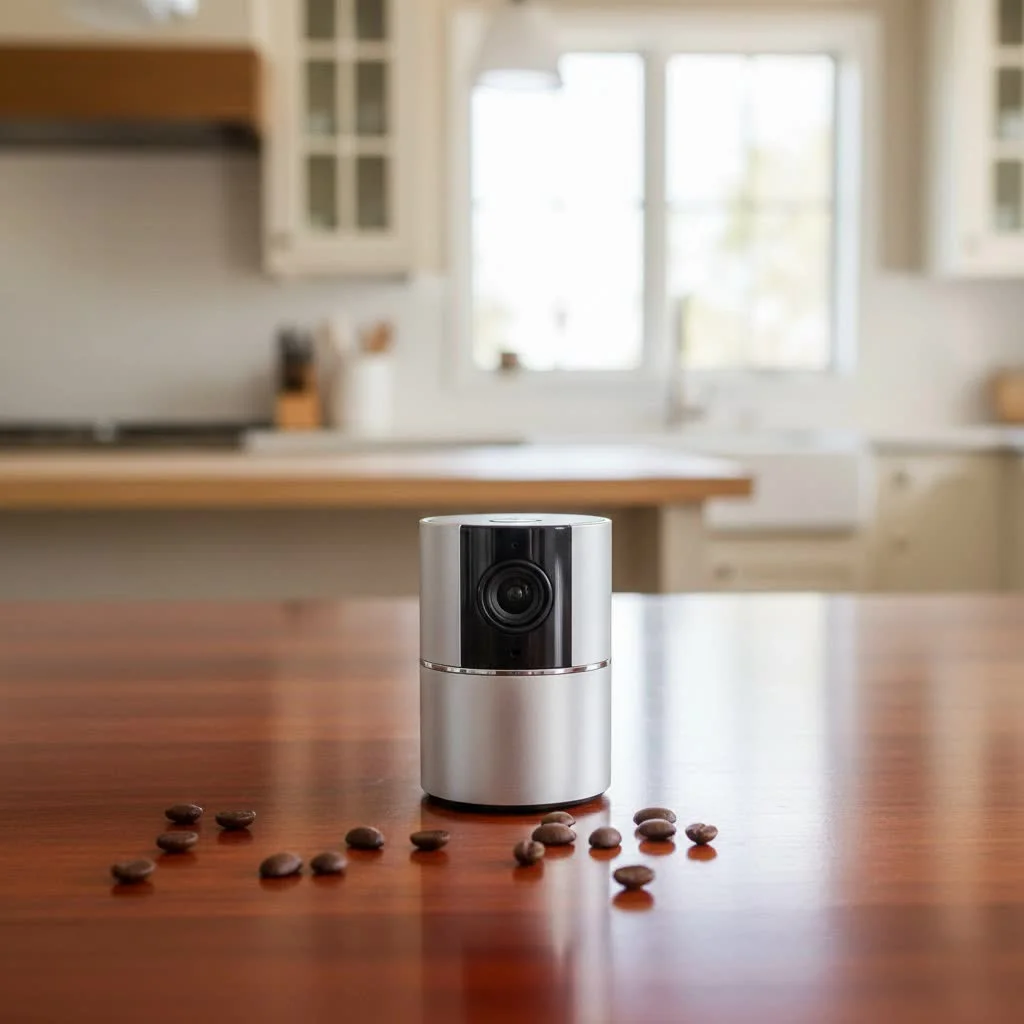
Why Upgrade Your Webcam? The Clear Difference
Ever wonder why some people look so sharp and vibrant on video calls while others, well, look like they’re broadcasting from a potato? The answer usually lies with their webcam. Upgrading isn’t just about showing off; it’s about making a real impact in how you communicate and connect. For compare top webcam reviews on this site.
The Limitations of Built-in Laptop Cameras
Most laptops come with a webcam that’s, at best, “adequate.” Typically, these integrated cameras offer a humble 720p resolution, often struggle in anything less than perfect lighting, and rarely feature autofocus or a wide field of view. They’re designed for convenience, not quality. This means blurry images, dull colors, and a static frame that makes it tough to look your best, especially when you’re trying to make a professional impression or engage an audience. They might do the job in a pinch, but they certainly won’t help you shine.
The Power of an External Webcam
An external webcam for your PC, on the other hand, is a major upgrade. These devices are purpose-built to deliver superior video and audio performance. Think sharper images, more accurate colors, smoother motion, and clearer sound. Many come packed with advanced features like autofocus, intelligent light correction, and wider fields of view, giving you far more control over your visual output. It’s like stepping out of the shadows and into the spotlight.
Key Factors to Consider When Buying a Webcam for Your PC
Choosing the right webcam for your PC can feel a bit like navigating a tech maze, but don’t fret! It boils down to a few core specifications and features. Let’s break down what truly matters to help you find your perfect match.
Resolution: Clarity is King (720p, 1080p, or 4K)
When it comes to image quality, resolution is the star of the show. It dictates how many pixels make up your video, directly impacting sharpness and detail.
- 720p (HD): This is the baseline, often found in older webcams or basic laptop cameras. While it’s functional for casual chats, it generally provides the softest image quality. If you’re serious about your video, it’s best to aim higher.
- 1080p (Full HD): This is the sweet spot for most users and a great starting point for a decent webcam. It offers clear, sharp images perfect for video conferencing, online classes, and even casual streaming. Many popular models like the Logitech C920 series excel here.
- 4K (Ultra HD): For professionals, content creators, and anyone who demands the absolute best, 4K webcams are the pinnacle. They deliver incredibly detailed and vibrant video, allowing for extensive cropping without losing sharpness. However, a word of caution: while 4K resolution is stunning, many 4K webcams are limited to 30 frames per second (fps). You’ll often have to choose between a sharper picture (4K at 30fps) and smoother motion (1080p at 60fps), with the former generally being the better choice for overall picture quality in most scenarios.
Frame Rate (FPS): For Smooth, Natural Motion
|
Our Picks for the Best Webcam in 2026
As an Amazon Associate I earn from qualifying purchases.
|
||
| Num | Product | Action |
|---|---|---|
| 1 | TRAUSI 1080P Webcam with Privacy Cover, Wide-Angle Lens, Noise Cancellation, Plug and Play USB Webcam for Laptop/PC/Desktop |

|
| 2 | Kemeiv 1080P Webcam Microphone and Physical Privacy Cover Computer Webcam, Noise-canceling Microphone, Automatic Light Compensation, Ultra-Wide-Angle Lens for Meetings/Courses/Streaming/Zoom/YouTube |
|
| 3 | Gohero Full HD 1080P Video Webcam, Noise Cancellation, Privacy Cover, Wide-Angle Lens, Auto Light Correction, Plug & Play USB Webcam for Laptop, Desktop, PC, Mac, Zoom, Skype Pro Series |
|
| 4 | 1080P Full HD Webcam with Noise-Canceling Mic, Auto Light Correction, Privacy Cover and Wide Angle Lens, Plug & Play USB Camera for Laptop/Desktop/PC/Mac, Compatible with Zoom/Skype/Teams/Streaming |
|
| 5 | NIVEOLI Webcam 1080P with Microphone & Privacy Cover for PC/Laptop, USB Computer Camera Plug & Play with Auto Light Correction for Video Calls, Live Streaming Gaming & Online Meetings |
|
| 6 | EMEET 1080P Webcam with Microphone, C960 Web Cam, 2 Mics, 90° FOV, USB Type-A & A-to-C Adapter, Plug&Play Computer Camera for Online Calling, Zoom/Teams/Facetime, Switch 2 Camera Support, 2025 Version |
|
| 7 | EMEET C960 4K Webcam for PC, 4K UHD Sony Sensor, PDAF Auto Focus, Dual AI Noise-Cancelling Mics, Auto Light Correction, 73° FOV, Plug&Play Webcam w/Privacy Cover, Works w/Zoom/Teams/Skype/Google Meet |
|
| 8 | Logitech Brio 101 Full HD 1080p Webcam for Meetings, Streaming, Desktop, Laptop, PC - Built-in Mic, Shutter, Works with Zoom, Microsoft Teams, Nintendo Switch 2’s New GameChat Mode, USB-A,-Black |
|
| 9 | AOC 4k Webcam for PC with Microphone, Computer Camera with Noise Cancellation, Privacy Cover, 99° FOV, Plug & Play USB Webcam for Streaming, Conferencing, Zoom, Skype, Facetime, Laptop, PC, Skype |
|
| 10 | Lenovo HD 1080p Webcam (300 FHD)- Black w/ 95° Wide Angle, 360° Rotation Pan & Tilt, Dual Microphones, Privacy Shutter |
|
Frame rate, measured in frames per second (fps), determines how smooth and fluid your video appears.
- 30fps: This is the standard for most webcams and provides a perfectly acceptable, natural-looking video for most conversations and meetings.
- 60fps: If you’re into gaming, live streaming fast-paced content, or simply want exceptionally smooth, lifelike motion, a 60fps webcam is a must-have. It creates a much more realistic and engaging visual experience.
Lens Quality and Aperture: Seeing in the Best Light
The lens on your webcam is just as crucial as the sensor. A good lens can make a significant difference, especially in challenging lighting conditions.
- Glass vs. Plastic Lenses: Webcams with glass lenses generally offer superior optical quality, producing sharper images with more accurate colors and better low-light performance. They are typically found in higher-end models. Plastic lenses are more common in budget webcams.
- Aperture (f-number): This value, often expressed as f/(number) (e.g., f/2.0, f/2.8), indicates how much light the lens lets in. A lower f-number signifies a wider aperture, meaning more light reaches the camera sensor. More light translates to better performance in dimly lit rooms, resulting in a brighter, clearer image. While webcams don’t always advertise this, it’s a key factor for low-light capability.
Field of View (FoV): What Do You Want to Show?
The field of view determines how much of your surroundings the webcam captures.
- Narrow FoV (e.g., 65-70 degrees): Ideal if you only want to show your face and upper body, keeping your background minimal or cropped out. Perfect for personal calls or professional headshots.
- Wide FoV (e.g., 80-90+ degrees): Suitable for capturing more of your environment, such as a multi-person meeting in a huddle room or showcasing your workspace for creative content.
Audio Performance: Your Voice!
While the visual is primary, clear audio is equally important for effective communication.
- Built-in Microphones: Most webcams come with integrated microphones, many of which now include noise-cancellation technology to reduce background distractions. For casual use, these are often sufficient.
- Dedicated Microphones: For serious streamers, podcasters, or professionals who need pristine audio, a dedicated USB microphone or a gaming headset with a boom mic will always outperform any webcam’s built-in option. If audio quality is paramount, consider the additional investment.
Essential Features That Make a Difference
Modern webcams offer a host of features designed to enhance your experience:
- Autofocus: Automatically adjusts the focus to keep you sharp, even if you move. A must-have for dynamic presenters.
- Low-Light Correction: Improves image quality in dim environments, preventing dark, grainy video. Look for features like automatic exposure adjustment and Logitech’s RightLight technology.
- Privacy Shutter: A physical cover for the lens, offering peace of mind when the webcam isn’t in use. Some even electronically disable the camera.
- AI Tracking: Advanced webcams can automatically pan, tilt, and zoom to keep you centered in the frame, even if you move around. Models like the Obsbot Tiny series are famous for this.
- Windows Hello: For Windows users, some webcams support facial recognition for secure, password-free login.
Compatibility and Software: Plug and Play, or More?
Most webcams are “plug and play,” meaning they’ll work immediately when connected to your PC. However, dedicated software from the manufacturer can unlock additional features like pan, tilt, zoom controls, motion detection, face tracking, and image customization (brightness, contrast, white balance). Always ensure the webcam is compatible with your operating system (Windows, macOS) and your preferred video conferencing platforms (Zoom, Microsoft Teams, Google Meet, Skype, Twitch, OBS).
Budget: Finding the Sweet Spot
Webcam prices vary widely, from under $30 for basic HD models to several hundred dollars for premium 4K streaming cameras. Establish your budget, but also consider your primary use case. You don’t always need to break the bank for a significant upgrade over your laptop’s built-in camera. For example, the Anker PowerConf C200 offers a substantial upgrade to 1440p at an affordable price.
“Don’t just buy a webcam; invest in your online presence. The clarity, fluidity, and confidence a good webcam provides are invaluable in today’s digital world,” advises Alex Chen, a seasoned expert in digital communication systems at Mundv.
Top Webcam Recommendations for Different Needs
With so many options, picking a specific model can be daunting. Here are some categories and examples that frequently stand out, based on current market trends and user needs:
Best Overall/General Use
For most people seeking a solid, all-around performer that balances quality and features without an exorbitant price tag, models like the Anker PowerConf C300 or the Logitech C920s Pro are often excellent choices. They offer reliable 1080p video, decent audio, and useful features like autofocus and light correction, making them suitable for everything from family calls to professional meetings.
Best Budget Webcam
If you’re on a tight budget but still want a noticeable improvement over your laptop’s camera, options like the Logitech C270 (720p with good light correction) or the Anker PowerConf C200 (a step up to 1440p) provide great value. They deliver clear enough video for everyday meetings and typically include noise-reducing microphones.
Best for Streaming and Gaming
Serious streamers and gamers demand high frame rates and superior image quality. The Logitech StreamCam is a popular choice for its 1080p 60fps capability, USB-C connection, and vertical video support. For those seeking even higher quality, the Elgato Facecam Pro stands out, offering full 4K at 60fps, often fooling viewers into thinking it’s a mirrorless camera. The Razer Kiyo Pro Ultra also delivers exceptional video quality, especially in low light. These cameras often forgo built-in microphones, assuming you’ll use a dedicated gaming headset or USB mic.
Best for 4K Video and Advanced Conferencing
For stunning 4K resolution and intelligent features, the Obsbot Tiny 2 is a favorite, boasting 4K video, mechanical pan and tilt, and effective AI movement tracking with voice control. The Logitech MX Brio is another high-end contender, offering excellent video quality and a range of companion apps, making it versatile for both web calls and streams.
Beyond the Box: Optimizing Your Webcam Experience
Simply plugging in a great webcam for your PC is a fantastic start, but a few extra steps can truly improve your video presence.
Lighting is Everything
Even the best webcam struggles in poor lighting. Position yourself facing a window or use a ring light or softbox to illuminate your face evenly. Avoid strong backlighting, which can turn you into a silhouette. Good lighting makes you look clearer, more vibrant, and more professional.
Software Settings and Customization
Don’t overlook the accompanying software. Many webcams come with utilities that allow you to fine-tune settings like brightness, contrast, white balance, zoom, and even apply filters. Take a few minutes to explore these options; they can significantly improve your image.
Placement and Angles
The angle of your webcam matters. Ideally, place it at eye level or slightly above to create a flattering perspective. Experiment with positioning it directly on top of your monitor or using a small tripod for more flexibility.
Can Your Phone Be a PC Webcam?
In a pinch, yes! Apps like DroidCam (for Android) and EpocCam (for iPhone) allow you to use your smartphone’s often superior camera as a webcam for your PC. This can be a great temporary solution, especially if you have no budget for a dedicated webcam. However, these solutions often come with their own complexities, like setup challenges, battery drain, and the inconvenience of tying up your phone. While useful, a dedicated webcam for your PC will generally offer a more seamless, reliable, and feature-rich experience.
Conclusion
Choosing the right webcam for your PC is a crucial step toward enhancing your digital communication, whether for work, play, or connecting with the world. By focusing on resolution, frame rate, lens quality, audio performance, and smart features, you can confidently select a device that not only meets but exceeds your expectations. From budget-friendly upgrades to professional-grade streaming powerhouses, there’s a perfect webcam out there for everyone. So, go ahead, explore the possibilities, and step into your next virtual interaction with clarity and confidence. Your audience (and your colleagues, friends, or family) will thank you for it!
Frequently Asked Questions
What is the most important factor when choosing a webcam for PC?
The most important factor is resolution, with 1080p (Full HD) being the sweet spot for most users, offering clear and sharp images for video conferencing and online classes. For professionals, 4K (Ultra HD) provides superior detail, though it often comes with a trade-off in frame rate.
Do I need a 60fps webcam for general use and video calls?
No, a 60fps webcam is not strictly necessary for general use and most video calls. A 30fps webcam provides perfectly acceptable and natural-looking video for conversations and meetings. 60fps is primarily beneficial for fast-paced content like gaming or live streaming where exceptionally smooth motion is desired.
Are built-in laptop cameras good enough for professional use?
Built-in laptop cameras are generally not sufficient for professional use. They typically offer only 720p resolution, struggle in low-light conditions, and lack advanced features like autofocus or wide fields of view. An external webcam provides significantly better image quality, color accuracy, and control.
What are some essential features to look for in a new webcam?
Essential features to look for include autofocus, which keeps you sharp even if you move, and low-light correction to improve image quality in dim environments. A privacy shutter is also highly recommended for peace of mind, and AI tracking can keep you centered in the frame automatically.
Can I use my smartphone as a temporary webcam for my PC?
Yes, you can use your smartphone as a temporary webcam for your PC with apps like DroidCam for Android or EpocCam for iPhone. While this can be a convenient solution, dedicated webcams generally offer a more seamless setup, better reliability, and a richer feature set without draining your phone's battery.
Get our weekly buyer guide
Practical specs, not advice. Unsubscribe anytime.

As a professional content creator, I absolutely needed a 4K webcam, and the one I picked up (a Dell UltraSharp) has been fantastic. The lens quality is superb, and having a built-in privacy shutter gives me peace of mind. It’s a significant step up from any built-in camera.
I finally upgraded from my old laptop camera and the difference is night and day! The autofocus on my new Logitech C920s is a game-changer for my work calls. No more blurry moments when I shift around. Definitely worth investing in an external webcam for that professional look.
I got a 1080p webcam for my daily video chats, and while the resolution is good, the low-light correction isn’t as great as I hoped. My office can be a bit dim in the evenings, and I still look a little grainy. I might need to add an extra light source to really make it pop.
I was looking for something that could handle streaming my casual gaming sessions, and the recommendation for 60fps was spot on. My old webcam made everything look choppy. This new one, a Razer Kiyo Pro, delivers smooth video, though I wish the included tripod was a bit sturdier.